Managing users and their permissions
Stonal can delegate sign-in to your own identity provider (for example Microsoft Entra ID / Office 365). See Set up identity delegation (SSO).
What it is for
This module administers the accounts and permissions of your organisation: creating, modifying and deleting accounts, importing user lists, configuring access to applications, the geographical scope and the permission level.
Before you start
Access to this module depends on the permissions you have been granted: it is only open to users who belong to a user group of the "Administration" type. It may not appear in your menu; if you need it, ask your internal contact.
The seven tabs
User list · Application groups · User groups · Report groups · Profiles · Companies · API – Personal access tokens.
1. User list
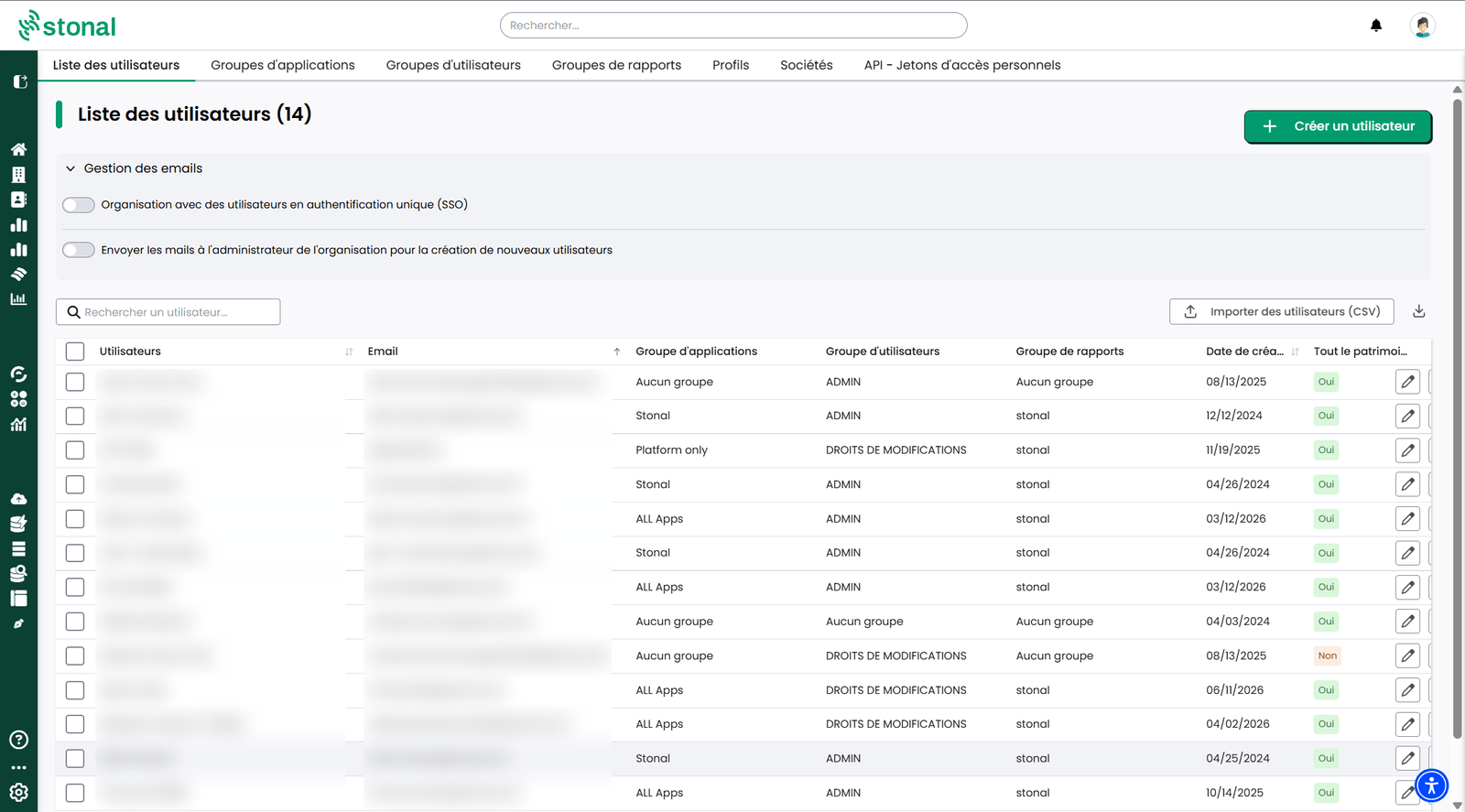
The table of all your accounts. You can search (email, last name, first name), edit, delete, resend the account creation email and export the table.
Each row gives you the application group, the user group, the report group, the account's creation date and whether it covers the whole portfolio or not.
Exporting the table is the starting point for auditing your permissions and preparing a bulk update — it is the same format as the one expected on import.
Creating a user happens in three sections:
Information — email, first name and last name are required.
Account settings:
| Setting | What it determines |
|---|---|
| Application group | Which applications the user can reach |
| User group | Their permission level |
| Report group | Which analysis reports they can consult |
| Profile | Fine-grained permissions on the previous-generation modules |
| Company | No effect on the platform; useful for segmenting by subsidiary or branch |
| Temporary account | The date on which the account's access stops on its own |
Portfolio permissions — either "Include the whole portfolio", or a manual selection by branches, properties or buildings.
Granting time-limited access
A contractor, an intern, an audit assignment: when access is only needed for a while, you can give it an end date at the moment you create the account, rather than having to remember to remove it when the day comes.
In the account settings, turn on the "Temporary account" toggle. The "Expiration date" field then appears and becomes required; the calendar only offers future dates. The toggle is available when creating an account as well as on an account that already exists.
On the chosen date, the person's access to your organisation is switched off automatically, exactly as if you had switched it off yourself. The account, its groups and its permissions are kept: the person loses access, you do not lose their configuration. The chosen day is included, access runs until the end of it.
To extend it, simply change the date. To remove the deadline, turn the toggle off and save: the account becomes an account with no end date again.
If access has already expired, re-enabling it from the user list also removes the date. The account will therefore not be switched off a second time.
Import users in bulk
The "Import users" button creates and updates accounts from a CSV file. To get the expected layout, download your user list first.
The last column of that file, "Expiration date", carries time-limited access, in YYYY-MM-DD
format. A cell left empty removes the account's deadline.
An account missing from your file is not deleted. Deletion goes through the dedicated option in the list.
Email settings
Two options are available:
They sit in the Email settings section, at the top of the tab:
- "Organisation with single sign-on users (SSO)" — turns off the password creation email. Turn it on once identity delegation is in place.
- "Send the emails to the organisation administrator when new users are created" — notifies you whenever an account is created.
2. User groups — the permission level
Three levels exist: Administration (full access), Modify and Read-only.
The Modify level is refined by theme:
- Portfolio and data — create and modify the portfolio, add and modify data, retrieve open data, create and modify a shared query;
- Contacts & operators — create and modify contacts and contracts. Deleting them depends on a separate permission;
- Documents — advanced document actions, configuring document templates, importing documents, modifying documents and their information.
3. Application groups
Group applications to grant access to them as a block: a name, then the tick boxes. The table shows the linked applications and the number of users attached to each group.
4. Personal access tokens (API)
Create and revoke tokens for the Stonal public API: a name, a duration, then "create".
It cannot be viewed afterwards. The duration is deliberately limited; you can revoke a token early from the table.
5. Analysis report groups
Manage access to reports: create a group (a name, the reports ticked), see the number of users attached, modify, delete.
Good to know
Your users can also be managed via API.
See also
- Signing in to Stonal — what the user you create experiences
- Organisation management
- Identity delegation (SSO), signing in through your identity provider
- API guide — Users