Signing in to Stonal
What it is for
Accessing the platform from the URL specific to your organisation.
Before you start
Your account is created by someone with Administrator permissions in your organisation: there is no self sign-up.
Once the account has been created, you receive an email from no-reply@stonal.com containing the link that lets you set your password.
Bookmark your Stonal URL in your browser to save time the next time you want to sign in.
Step by step
1. Create your password
Open the link received by email, then choose your password. It has to meet the following rules:
| Rule | Detail |
|---|---|
| Length | 16 to 128 characters |
| Digits | at least 2 |
| Lowercase letters | at least 2 |
| Uppercase letters | at least 2 |
| Special characters | at least 3 |
| Spaces | none |
The accepted special characters are:
? _ ' " ! @ # $ % ^ & * ( ) < > [ ] { } | + - = . , /
Neither your email address nor your username may appear in it.
These rules are also shown on screen as you type, and the form tells you as you go whether your password meets them.
2. Sign in
At your organisation's address, enter your email and your password, then confirm.
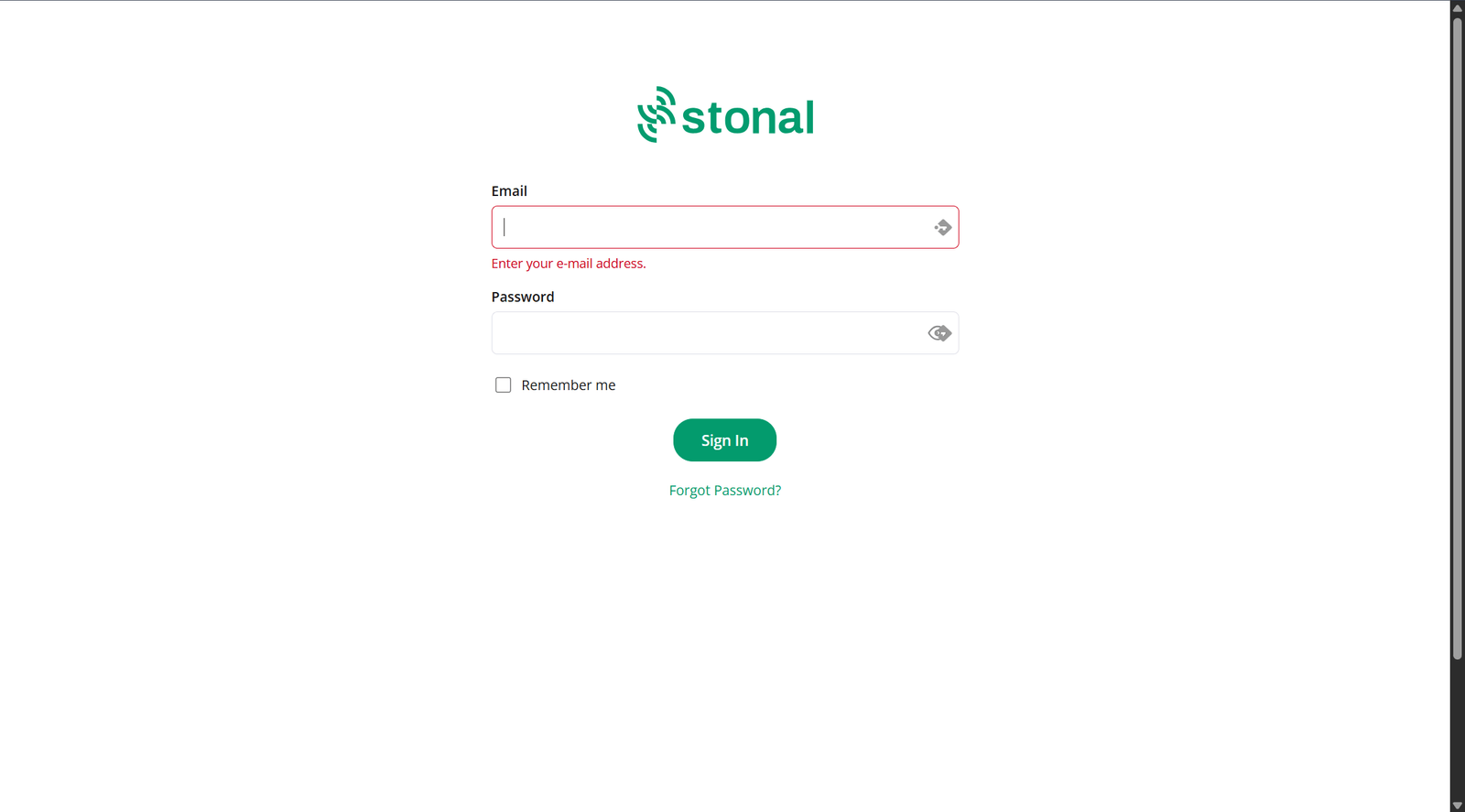
The "Remember me" option saves you retyping your email every time. The "Forgot Password" link sits just below the button.
3. If your company uses single sign-on (SSO)
Depending on the setup chosen by your organisation, a button bearing your company name appears on the sign-in form. One click is enough: you access the platform without entering a password.
Good to know
- Forgotten password: use the "Forgotten password" link on the sign-in form.
- In an organisation configured for single sign-on, the password creation email is not sent: signing in happens only through your company button.
See also
- User management — creating accounts and managing permissions
- API guide — Authentication — to connect Stonal to your tools