The documents of a property
This page concerns organisations running Stonal Smartdoc document management.
If your organisation is still on Keep, your screens are described in Keep.
What it is for
This tab lets you reach the documents of the selected property or building, manage them and import more.
When you import a document, Stonal's artificial intelligence recognises the document type — what we call its class — and files it automatically in the right folder. You keep full visibility on that filing, and the ability to correct it.
Depending on the document type, it also extracts information from it, to save you reading through. That extracted information, which we call metadata, appears on the right once the document is open in the interface.
Video tutorial, 1 min 17: the documents of a property and their shared filing structure.
Before you start
What you can do depends on the permissions you have been granted: viewing and downloading are open to everyone, importing and filing require a modify permission, and creating or changing the folders of a document template a document administration permission. If you need them, ask your internal contact.
The tab only appears if a document template has been created beforehand.
The screen explained
The tab has two sub-tabs: Filed documents, shown by default, and Document management.
The Filed documents sub-tab
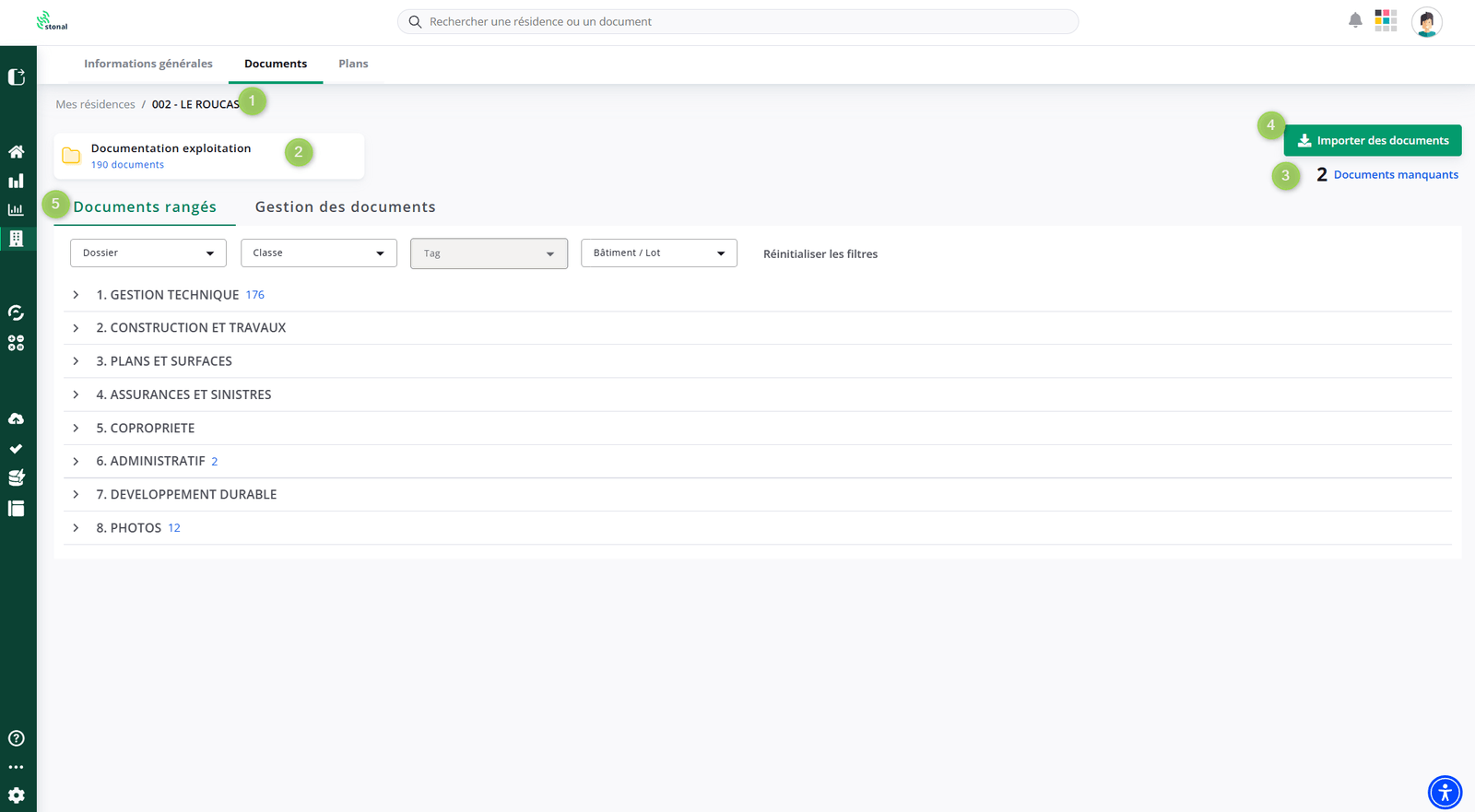
-
Breadcrumb — where you are, and the way back up a level.
-
Documentation — the name of the selected document template and how many documents it holds.
-
Missing documents — the number of mandatory documents unavailable. Click to open the detail.
Each organisation defines its own list of the documents it treats as mandatory. So this counter tells you, for the property on screen, whether any of them are missing — and which. The list is configured in ⚙️ Settings › Document templates: define the mandatory documents.
-
Import documents — the upload button.
-
Filed documents — the sub-tab you are on, next to Document management.
A document template is a grouping of folders. Each one carries its own, and the folder you are looking at always belongs to the template selected here — which is why the tree changes when you switch it.
Our clients usually distinguish two: an operations documentation and a DOE documentation, for as-built files. To review that configuration, speak to your internal contact.
For a given document template, the folders are shared across all your properties: your documents are therefore filed the same way from one end of the portfolio to the other.
Expanding the tree takes you down to the document:
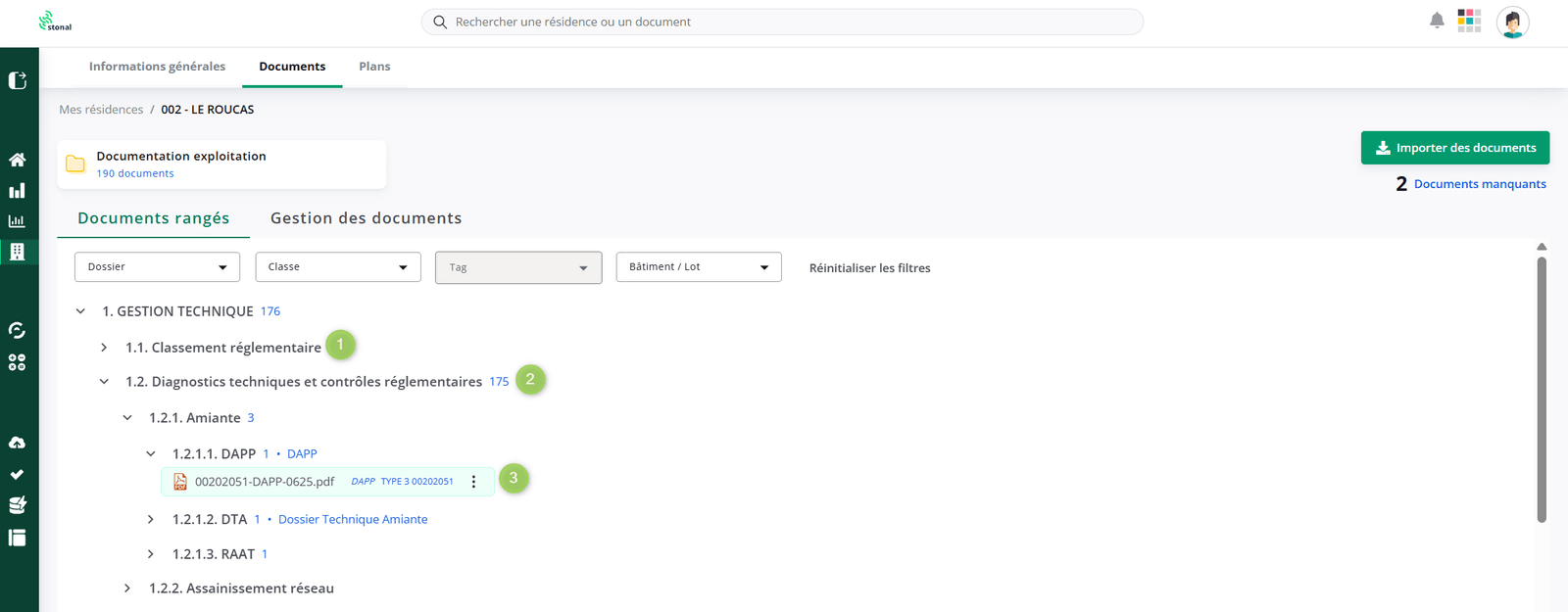
- Sub-folder — the tree expands across several levels.
- Number of documents — how many the folder holds.
- The document — its label is followed by its class (EPC, asbestos survey, lease…) and by the unit concerned when the document relates to one unit in particular.
The Document management sub-tab
This is the full list of your documents.
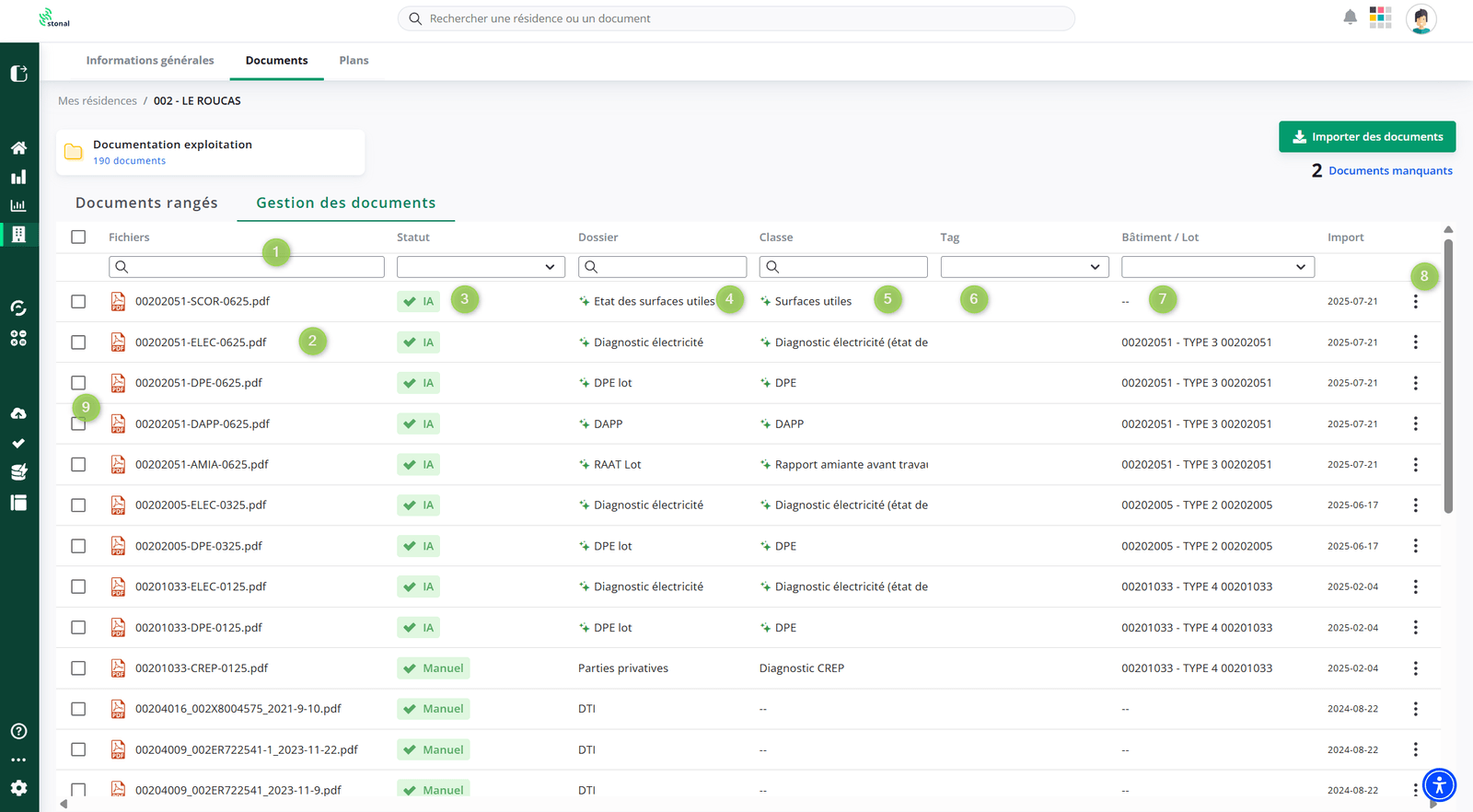
- Filters — every column has one.
- Files — the document label.
- Status — AI when the document was filed by the artificial intelligence, Manual when a user confirmed the folder and the class themselves, Action required when the artificial intelligence is unsure of what it proposes. Click the folder or the class to confirm or correct.
- Folder — the folder it is filed in.
- Class — the class assigned to it (optional).
- Tag — your tags, fully customisable (optional).
- Building / Unit — the buildings and units it relates to (optional).
- Options — rename, download, copy the document link, delete.
- Tick box — to act on several documents at once.
Tags are customisable and specific to your organisation. You can use them to identify the documents of a specific refurbishment, or the companies working on a site, for instance.
Step by step
Import documents
Video tutorial, 1 min 20: the import, the duplicate check and the automatic reading.
Two gestures work:
- click "Import documents" and choose one or more files;
- drag and drop your documents anywhere on the interface.
The artificial intelligence then takes over: it recognises the document class, proposes a filing folder based on that class, and extracts the metadata specific to the class — for an EPC: visit date, validity, energy rating, area; for a lease: tenants and dates.
The document goes through a classification status during that processing, then comes out either filed with an AI status, or flagged as needing your input with an Action required status. Processing takes a few seconds.
If you would rather choose the location yourself, drop the document straight into the folder you want, then complete the missing information from Document management: the document class, and the unit concerned if it is a unit document.
If the document is already present, a message asks you whether you really want to upload it again.
To work out the class, Stonal compares your document with those already held in your Stonal Smartdoc document management: it keeps the ones that resemble it most and reuses their class. If the proposed class is not the right one, correct it by clicking on it — the next documents of the same kind will be recognised better.
Import a whole folder tree at once
The drop zone accepts files, not folders. To bring in a whole tree in one go, compress it and drop the archive.
- On your computer, compress the folder into a ZIP file (7z files also work).
- Drop that archive in Smartdoc, like any other document.
- From the document row, choose "Extract file", then confirm.
Your folders come back as tags. Every folder level of the path inside the archive becomes a
tag on the document. A file stored in Safety/Lifts/2025/report.pdf arrives as report.pdf
carrying three tags: Safety, Lifts and 2025. Tags that do not exist yet are created for you.
Folders themselves are not recreated. Every extracted document lands in the same folder as the archive, and your original organisation lives on through the tags.
The archive itself is kept by default. Tick "Delete the ZIP file after extraction" in the dialog if you would rather it disappear once its content is in.
Extraction runs in the background. A progress bar follows it on the document row, and the list refreshes on its own when it is done.
- Documents coming out of an archive are not analysed by the artificial intelligence: no class is proposed and no metadata is extracted. Complete them from Document management.
- A file whose format is not supported is skipped on its own, without blocking the rest of the archive. You get a summary of what was left out.
- Two identical files inside the same archive are imported once.
- An archive can hold up to 5,000 files.
View a document
Video tutorial, 1 min 55: looking for a document, downloading it, sharing its link.
Click the document to open it, then the expand button to show it full page. Its metadata appears in the right-hand panel.
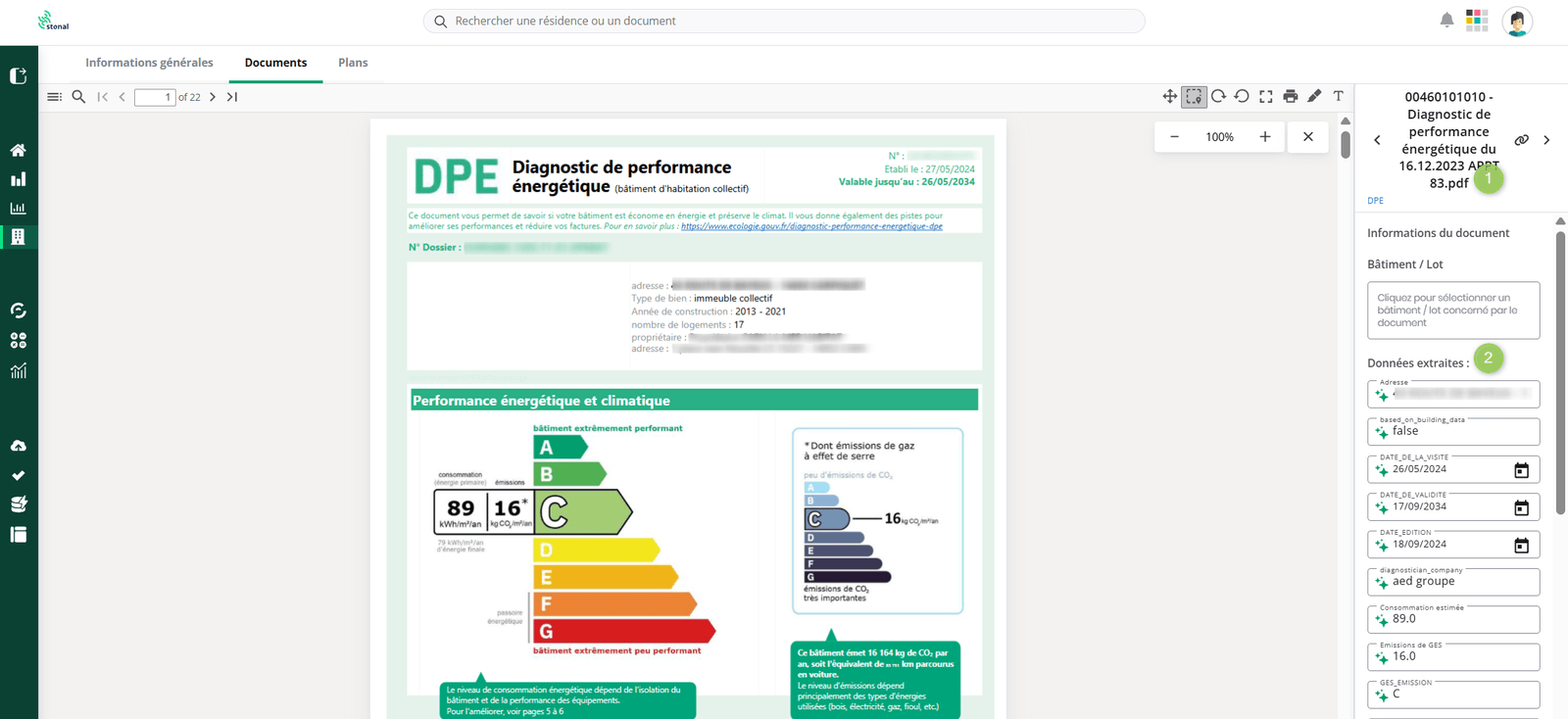
- Document label.
- Extracted data — the metadata, preceded by a star, was extracted by the artificial intelligence. You can correct or complete it by clicking straight into the field, then confirm at the bottom of the page.
Share the link to a document
To point a colleague to a document, open the action menu at the end of its row and choose "Copy document link". The link goes to your clipboard, ready to be pasted into an email or a message.
Opening it leads straight to the document in Stonal. The person still needs to be signed in and to have access to that document, so sharing the link does not widen who can see what.
Make the same document available from several properties
A document sometimes concerns several properties: one survey covering two buildings, one contract signed for a whole neighbourhood. Rather than importing it once per property, file it in a single place, then name the other properties concerned. It will show up in all of them.
From the Filed documents sub-tab, open the action menu of the document and choose "Add access to the document via other assets". Pick the properties concerned, then Create shortcut(s). The documentation and the folder stay those of the source document.
The document is not duplicated: what you create are shortcuts, all pointing to the same document. Any change made to it (a new label, a corrected class, a tag, completed metadata) is therefore reflected everywhere at once, whichever property you went through to open it.
This action requires the right to modify documents. If it does not appear in your menu, speak to your internal contact.
Correct a filing
On the Folder and Class columns, an icon shows the estimated reliability of the filing done by the artificial intelligence, from green (high reliability) to orange (low).
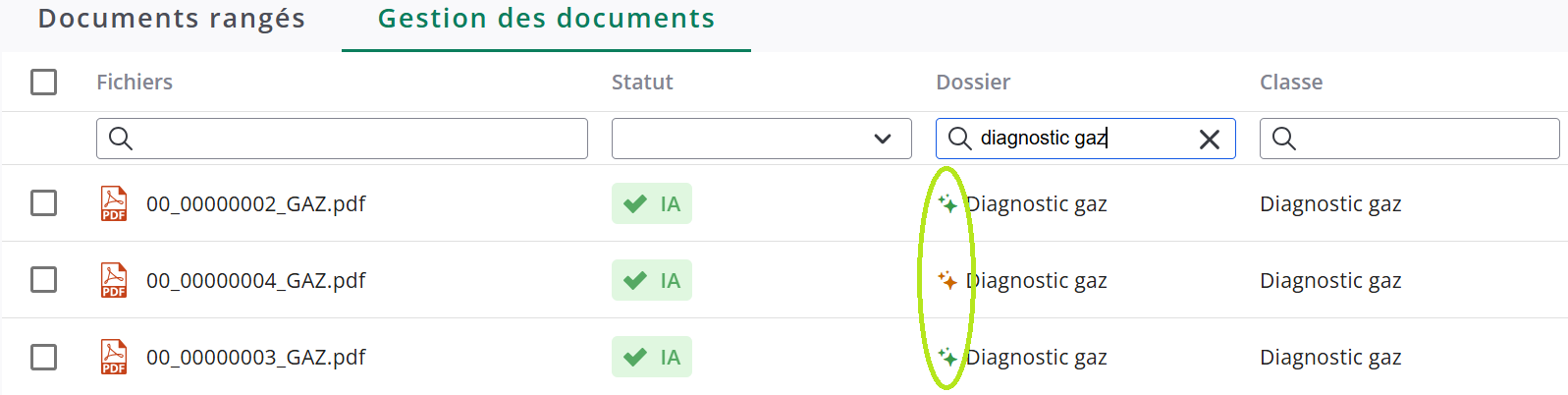
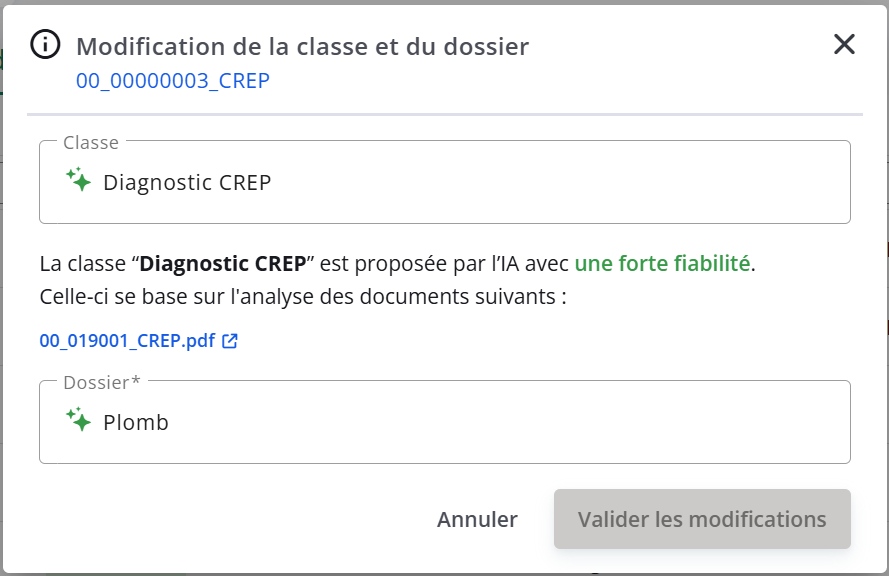
Click the icon to open the detail: Stonal tells you why it proposed that class, and which documents it relied on. You can then correct the class and the folder.
You can also drag a document onto another folder of the tree.
To quickly correct the folder, the class or the tags from the list: hover over the value, edit it with the pen 🖋️, then click anywhere to confirm.
Two rules worth knowing: a class is attached to at least one folder, and a folder has at most one class.
Spot duplicates
A document uploaded more than once by mistake is flagged in the list. Two duplicates are two documents whose content is exactly identical — two files sharing a name but holding different content are not duplicates.

Act on several documents
Tick the documents concerned in Document management to delete or modify them in a single operation — their class, their folder or their tags.
Good to know
Allowed file types are an exhaustive list, with size limits per type. An unknown extension is refused on import. If you need to upload a format that is not handled, speak to your internal contact: this list can change.
- A document filed in no folder does not appear in the Filed documents tab. To reach it, go to the Document management tab, then file it by clicking its Folder cell.
- A corrupted PDF, or one that text recognition cannot read, is marked as unable to be processed, with no alert at import. You will find it in the Document tracking report.
How well filing and extraction work depends a great deal on how your contractors produce their documents. We have gathered what to ask of them: what to ask of your surveyors.
See also
- The Document tracking report — the quality and completeness of your documents across the portfolio
- The search bar — search a document across the portfolio and act in bulk
- Document templates — how the folder structure is defined
- API guide — Document storage