The home page
What it is for
This is the page you land on after signing in. It gives the key figures of your portfolio and serves as your starting point.
Video tutorial, 1 min 54: what you find on arrival, and where to start.
The screen explained
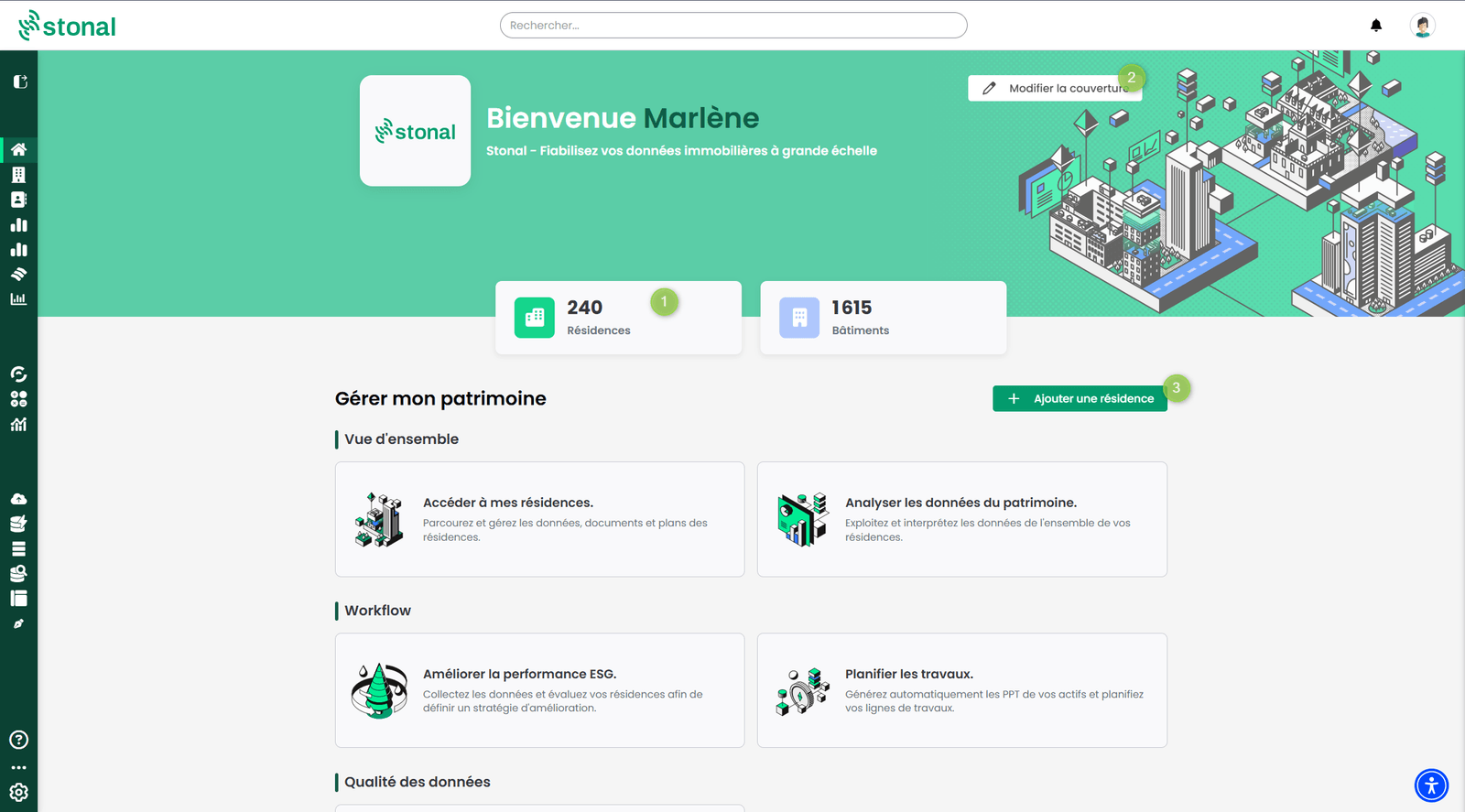
-
The key figures of your portfolio — the number of properties, buildings and dwellings. Clicking a figure opens the My properties page.
These figures count what is recorded in Stonal, which is not quite the same as your portfolio at a given moment. Properties and buildings that have left the portfolio — sold, demolished — are excluded, as are those being acquired and so not yet officially part of it. A gap with your own figures usually comes from there.
-
"Change cover" — the image at the top of the page is customisable per organisation. If you have the necessary permissions, hover over the image: the button appears and lets you replace it.
-
"Add a property" — to complete your portfolio by hand.
Step by step
Add a property
If you want to add a property by hand to the portfolio already described in the platform, click the "Add a property" button, in the centre right of the page.
- Add the property.
- Enter the site address.
- Complete the data of its identity card.
- Give the number of buildings.
This action depends on the permissions you have been granted, so you may not have access to it. If you need it, ask your internal contact.
Good to know
If your portfolio is updated from your management software, adding properties, buildings or data by hand is not advised: it may create inconsistencies.