Your organisation's settings
What it is for
This is where you set what is specific to your organisation, and therefore applies to all of its users.
Today those settings cover two points:
- the display of service provisions, that is the links between a piece of equipment and what it serves (for example a communal boiler and the dwellings it heats);
- the key indicators: you choose up to four properties to highlight at the top of the General information tab of every property and every building.
This page will grow as further settings are brought together here.
How to get there
⚙️ Settings in the sidebar › Organisation management › the Edit KPIs page.
The screen explained
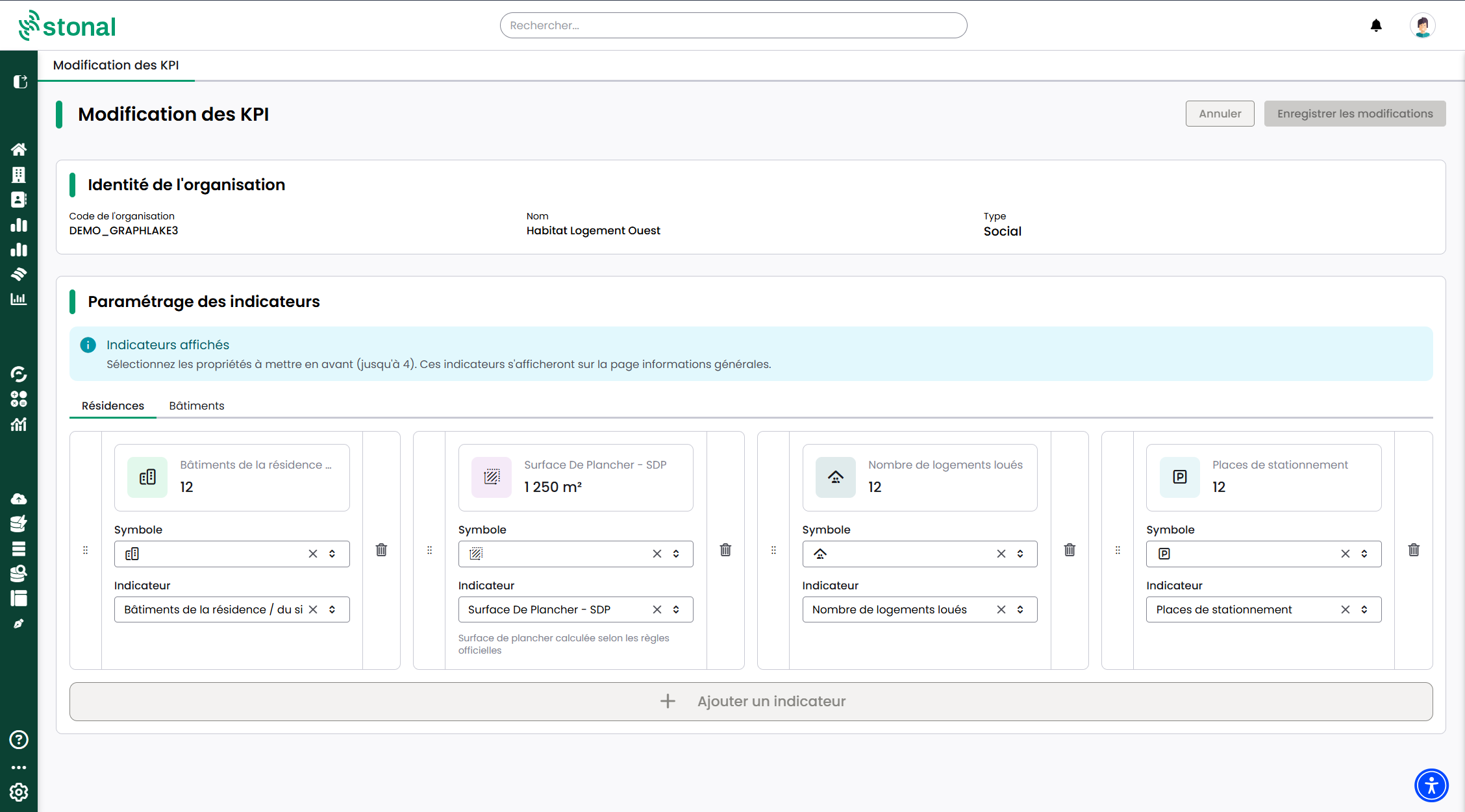
The page has two blocks:
- Organisation identity: its code, name and type, read-only, together with the Display service provisions switch.
- Indicator settings — one tab per property type present in your portfolio (Establishments, Properties, Buildings), with up to four indicators each.
If your organisation holds no items of a given type, the matching tab does not appear.
Step by step
Show or hide service provisions
- In the Organisation identity block, flip the Display service provisions switch.
- Click Save changes.
Once the display is on, service provisions appear on the sheet of every piece of equipment and on the sheet of every unit. Until you save, Cancel puts the switch back to its previous state.
Add an indicator
- Open the tab of the property type concerned.
- Click + Add an indicator.
- Choose the property — the list is tailored to the property type and comes from your reference data.
- Choose the icon.
- Click Save changes.
Modify or delete
Change the property or the icon on the row, then save. To delete, use the 🗑️ icon on the row, then save.
Cancel remains possible as long as you have not saved.
Good to know
Until someone turns on Display service provisions, no service provision is visible in your organisation. The setting applies to all your users.
Seeing service provisions requires nothing more. Creating, editing or deleting them depends on the rights you have been granted: you may not have access. If you need it, speak to your Stonal contact.
A configuration made for "Properties" applies to every property in your organisation. You cannot set indicators property by property, but you can have different configurations between Properties and Buildings.
Your changes are visible to all users the next time they sign in.
Three recommendations:
- Three to four indicators give the most balanced result. With no indicator configured, the block does not appear at all.
- Prefer properties that hold a value on most of your properties: an indicator that is often empty loses its point.
- The labels are those of your reference data. To rename one, speak to your Stonal contact.
Only properties compatible with the property type are offered. If a property you expected does not appear, contact your Stonal contact.
See also
- General information for a property — where your indicators appear
- User management