Managing your contacts and operators
What it is for
The Contacts & operators module gathers the contacts associated with your contracts and your scopes: individuals (technician, caretaker, site manager…) and organisations (company, provider, operator).
Every contact is attached to a contract, which lets you find who works on what, and under which arrangement.
Before you start
Viewing contacts is available to every user with access to this application. Creating, modifying or deleting a contact or a contract, however, depends on the permissions granted to each user, so you may not have access to it. If you need it, ask your internal contact.
The screen explained
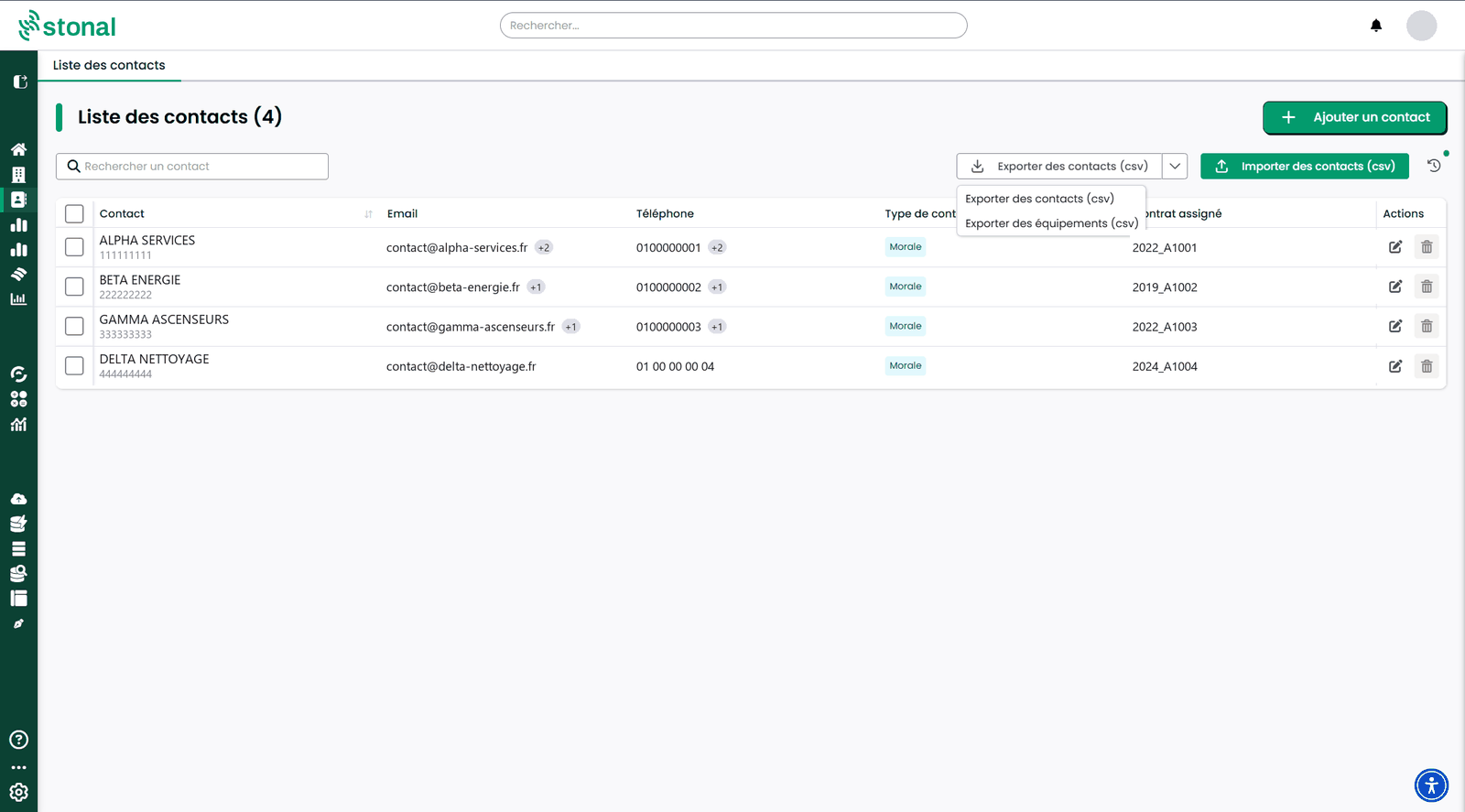
The list shows all your contacts, with a search bar (name, email…) and alphabetical sorting.
Two buttons at the top right handle bulk work:
- "Export contacts (csv)", whose dropdown also offers "Export equipment (csv)" to get every piece of equipment currently under contract.
- "Import contacts (csv)", to create and update several contacts and contracts in one go.
| Column | Content |
|---|---|
| Contact | Last name, first name and role for an individual; name and company number for an organisation |
| Phone | A tooltip appears if there are several numbers |
| Contact type | Individual or Organisation |
| Assigned contracts | |
| Actions | Modify, delete, depending on your permissions |
Step by step
Create a contact
Click "Add a contact". Creation happens in two steps, shown at the top of the screen: Contact then Contract.
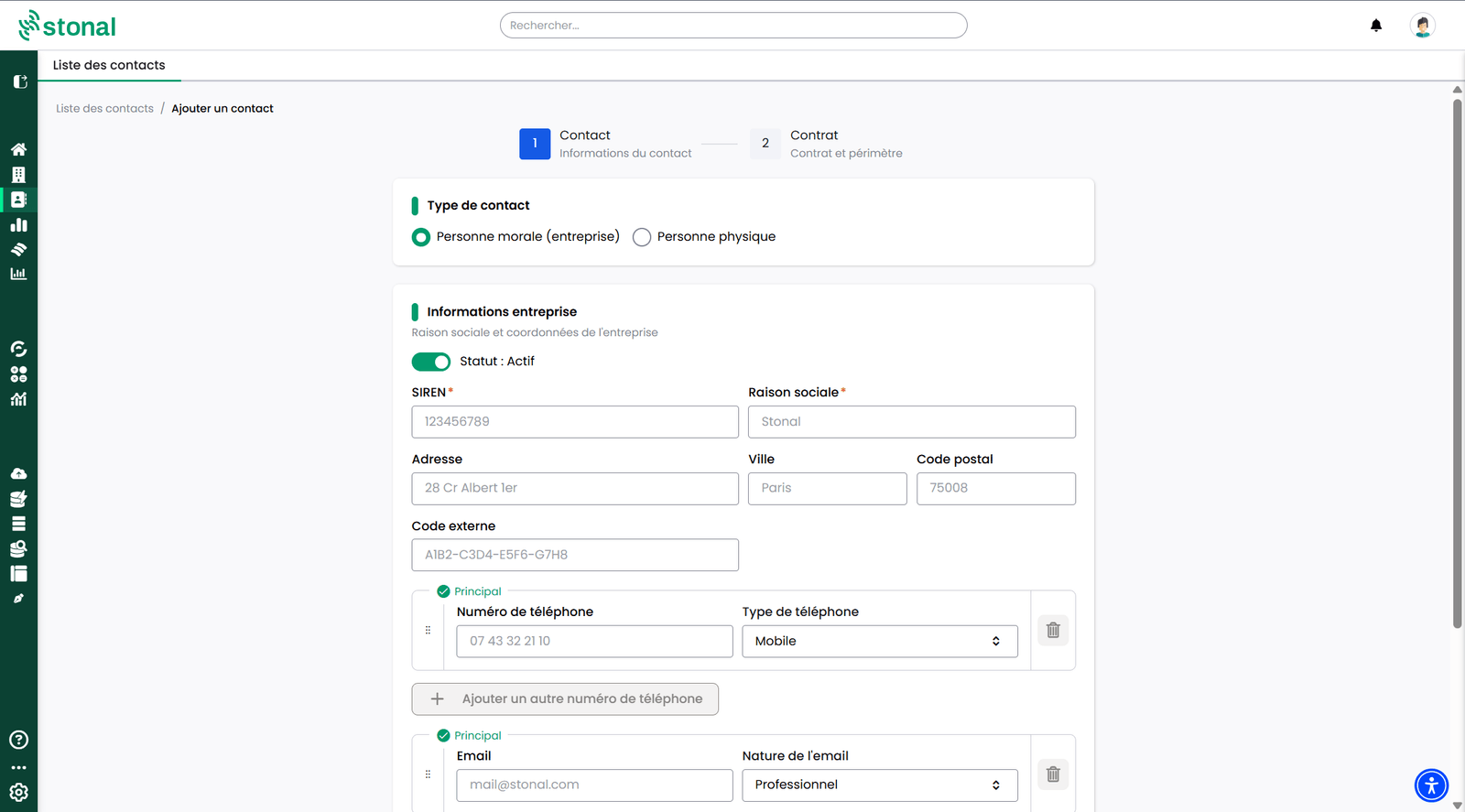
1. Choose the type: Organisation (company) or Individual. This choice determines the fields you will be asked for.
2. Enter the contact
For an organisation, two fields are required, marked with an asterisk: the company number and the registered name. You can complete with the address, the town, the postcode, and an external code if you want to find this contact from another of your tools.
A Status: Active toggle lets you deactivate a contact without deleting it.
An organisation is identified by its company number together with its registered name. You can therefore create side by side two entities of the same group that share the same company number, for instance one for lifts and one for parking doors.
You can record several phone numbers and several email addresses for the same contact. Each one carries its own qualifier, so that everybody knows what they are looking at: mobile, landline or fax for phone numbers, professional or other for emails. One of them is marked Primary.
For an individual, three fields are required: first name, last name and email address. Role and phone number are optional.
You can also attach an individual to an organisation already recorded in the platform. This is useful when several people work for the same provider: you then know straight away who belongs to which company. One organisation can have several individuals attached to it.
Two individuals cannot share the same email address in the platform.
3. Enter the contract, which is required.
The contract type is required, and you pick it from a list: Co-ownership, Insurance, Lease, Maintenance, Management mandate, Managing agent, Operational contact, Other, Service.
A contract must identify its scope of work at the very least: which properties it covers. Add them, branches, properties, buildings or units, with the "Add a scope" button. At least one item is required before you can confirm.
If the contract only concerns a few units, name at least those rather than the whole property.
Say what the contract actually covers. Click "Add a component", then choose the kind of item:
- Equipment: lifts, booster pumps, roofing…
- Zone
- Space: green space, playground…
Then pick the precise type from the list. For instance, if the contract covers the upkeep of green spaces, choose "Space" then "Green space". The list is hierarchical and has a search. This is only possible for organisation contacts.
Modify or delete a contact
Both operations sit in the Actions column, at the end of each row of the list. They only appear if your permissions allow them: modifying and deleting are two separate permissions.
Modify reopens the contact record. You find the same fields as at creation and can correct the details, the phone numbers and email addresses, the contract and its scope.
Delete removes the contact from your list.
The Status: Active toggle on the contact record lets you set aside a contact you no longer work with, without removing anything. It is the option to prefer: the history of the contracts is kept, and you can reactivate the contact if the relationship starts again.
Import and export your contacts
Exporting. From the contact list, you can export your contacts, your contracts, their scopes and the components they cover, as a spreadsheet. A second export is available from the same dropdown: every piece of equipment currently under contract.
Importing. The import lets you create and update your contacts and contracts in bulk, instead of entering them one by one.
Before anything is processed, the file is checked, which limits data entry mistakes. If anything looks wrong, it is shown to you on screen: you can then correct your file and import it again.
Once the import is finished, a summary appears in the interface and tells you what was really created, modified or skipped.
Track a lease
To follow a lease, create a contract of type Lease and attach it to the units it covers.
A contact attached to a Lease contract is automatically identified as a tenant. You will then find that tenant and their lease in the Rental status tab of the platform.
Good to know
Your contacts can also be managed via API, an approach chosen by some organisations that synchronise from their own information system. The steps are described in the API guide — Stakeholders.
See also
- User management, configuring access to the module
- API guide — Stakeholders