The search bar
This page concerns organisations running Stonal Smartdoc document management.
What it is for
The search bar in the header is available from any page. It finds your properties, your buildings and your documents across the whole portfolio.
A results page gathers everything your search found. That is where you act on several documents at once, without having to open each property one by one.
For documents, the search covers the document name, the property or building where it is filed, and any text contained in the document itself.
Searching documents, and the actions that go with it, only applies to organisations that have Stonal Smartdoc document management (GED) — the one behind the Documents tab.
If your organisation still uses Keep, the previous document management, the search bar only covers your properties and buildings: no search inside documents, and no document actions from the results page.
Step by step
Find something quickly
Video tutorial, 1 min 56: the search, and everything it brings back.
- Type your keywords: a dropdown shows the first results, organised by type.
- Click a property or a building to open its page; click a document to open it directly.
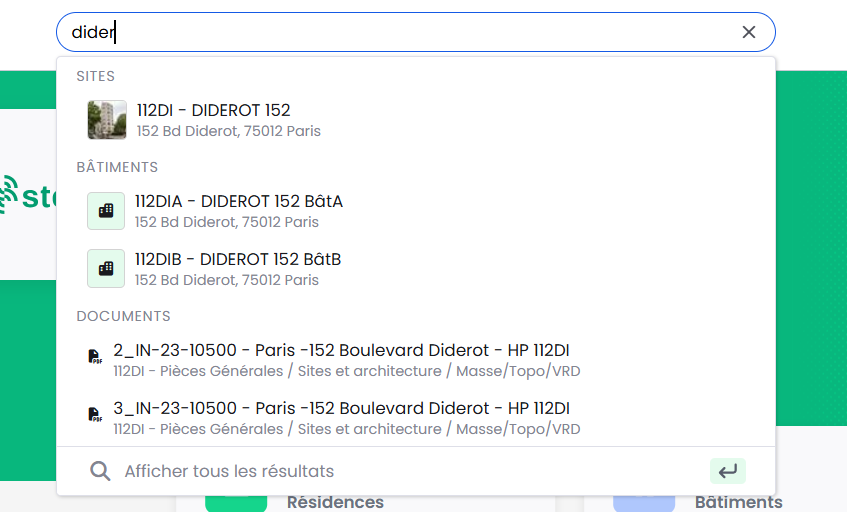
You can move through the list with the arrow keys, then Enter.
The "Show all results" link at the bottom of the dropdown opens the full results page.
Work from the results page
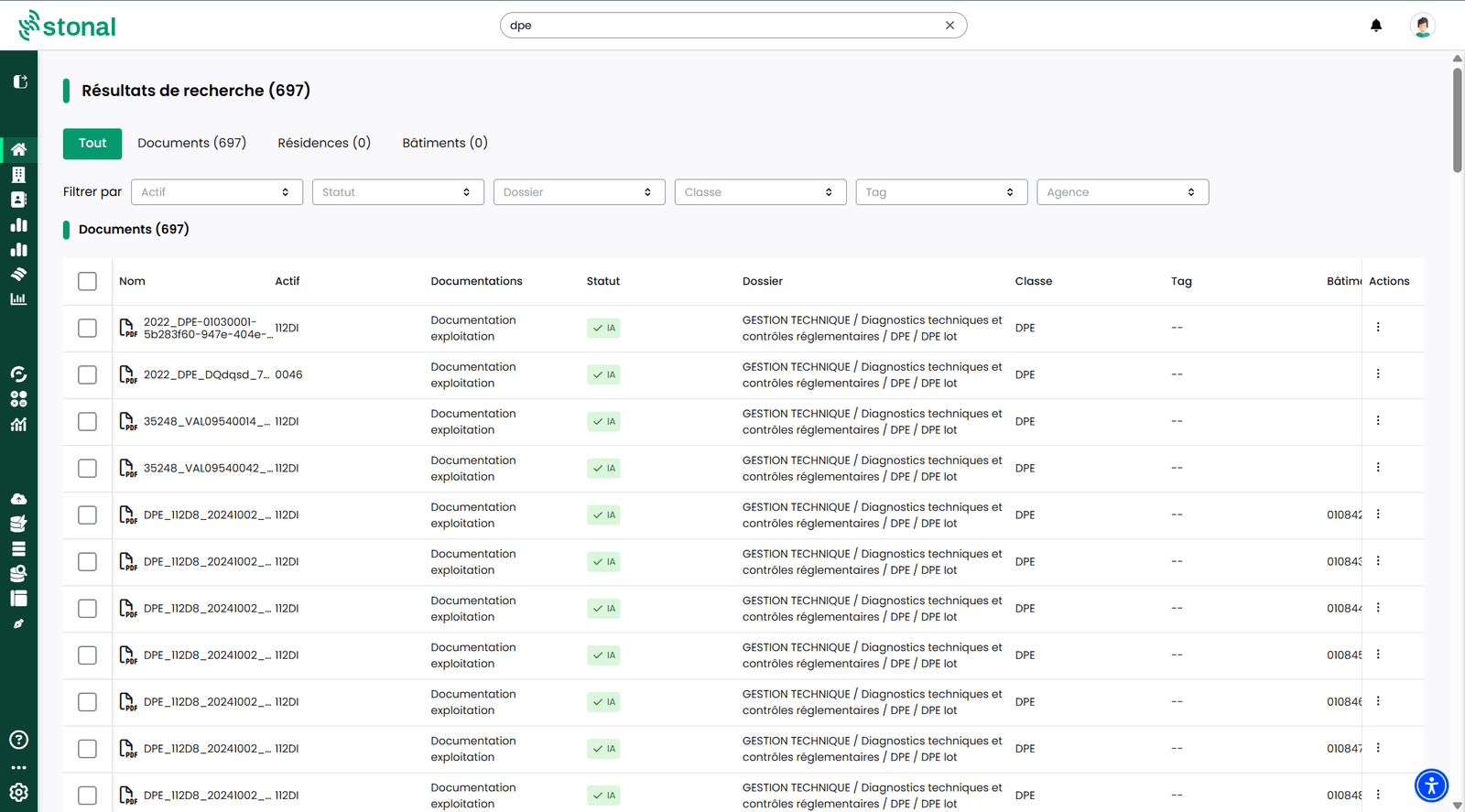
Results are split by type there, with one tab per family — Documents, Properties, Buildings — and the number of results in each. Filters help you narrow the list: asset, status, folder, class, tag, branch.
On a document you can view, download, rename, manage tags or delete. To correct a value quickly (folder, class, tag): hover over the cell, click the pencil, then click elsewhere to confirm.
Above all, this page is very handy for acting on several documents at once — applying the same tag to a whole batch, for instance. Tick the documents concerned: an action bar appears. In a single operation, and across the whole portfolio, you can add or change tags, change the class or the folder, download or delete.
This is the only place where a bulk action spans several properties.
Tags
Tags are fully customisable: you create your own. They organise your documents at the scale of your whole organisation — visible and applicable throughout — including from one property to another.
- Add an existing tag: if it does not yet exist in the documentation of one of the properties or buildings concerned, it is created there automatically before being applied.
- Create a tag: from the tag management window. It is created simultaneously on the documentation of every property or building concerned by the selected documents.
- Remove a tag: on one document or on a selection.
This is not possible from the results page. Permanent deletion happens in the documentation of each property or building.
Good to know
Deletion and modification actions depend on the permissions you have been granted, so you may not have access to them. If you need them, ask your internal contact.