Building a multi-year works plan
What it is for
The Works Plans module establishes the multi-year works programme (PPT) for your portfolio: works are listed, budgeted and then arbitrated, property by property, and consolidated at portfolio level.
You do not start from a blank page: the application lets you generate your works lines automatically from the wear of your equipment as recorded in the platform. Your job is to arbitrate those proposals and complete them.
The more complete that wear information is, the more reliable the lines generated automatically. Two values matter most: the equipment's overall condition and its last renewal date. Consolidating them beforehand is the best investment you can make in the quality of your plan.
- How the engine calculates your works — why a line is proposed for a given year, and the difference between Abyla and Graphlake organisations.
- Settings and libraries — configure the expense items, prices and criteria that feed your plans (Graphlake organisations).
Before you start
- Access to the Works Plans module (Workflows category of the menu).
- To reach Settings and libraries: the "PPT settings and Libraries" permission, granted by someone with advanced permissions.
- Deleting a works plan is reserved to administrators.
The properties list, at a glance
The properties list (Workflows > Works Plans) is where every works plan starts, and where you keep track of them over time.
- Search and filter to narrow the list down to the properties you need.
- Each property shows its plan's Stage (see step 5) and its Validated amount. The Period column is the same for every property, since all plans share one portfolio-wide horizon.
- History keeps every past works plan for a property, browsable year by year.
- 1€ or more — the plan already has validated lines.
- 0€ — either proposed lines are waiting for your arbitration, or the engine has not proposed any line at all for this property.
- "--" — no works plan has been started yet.
If a property shows 0€ and you do not see any proposed line either, this is the same question as Why an expected line does not appear — check there for the most common reasons.
Step by step
1. Start a works plan
From the list of properties:
- For several properties at once: tick them, click "Start PPTs", then give the starting year. Allow up to 3 minutes per property.
- For a single one: open the property and click "Start a PPT", then reload the page.
This generates your works lines automatically, from the wear of your equipment.
For each piece of equipment, Stonal combines its date of last renewal, its overall condition and the service life of the matching works item, to work out when its replacement should be scheduled — see How the engine calculates your works for the detail of this calculation.
These are proposals: you will be able to adjust them afterwards.
If you pick the wrong starting year, the only fix is to delete the plan and start it again.
2. Arbitrate the lines
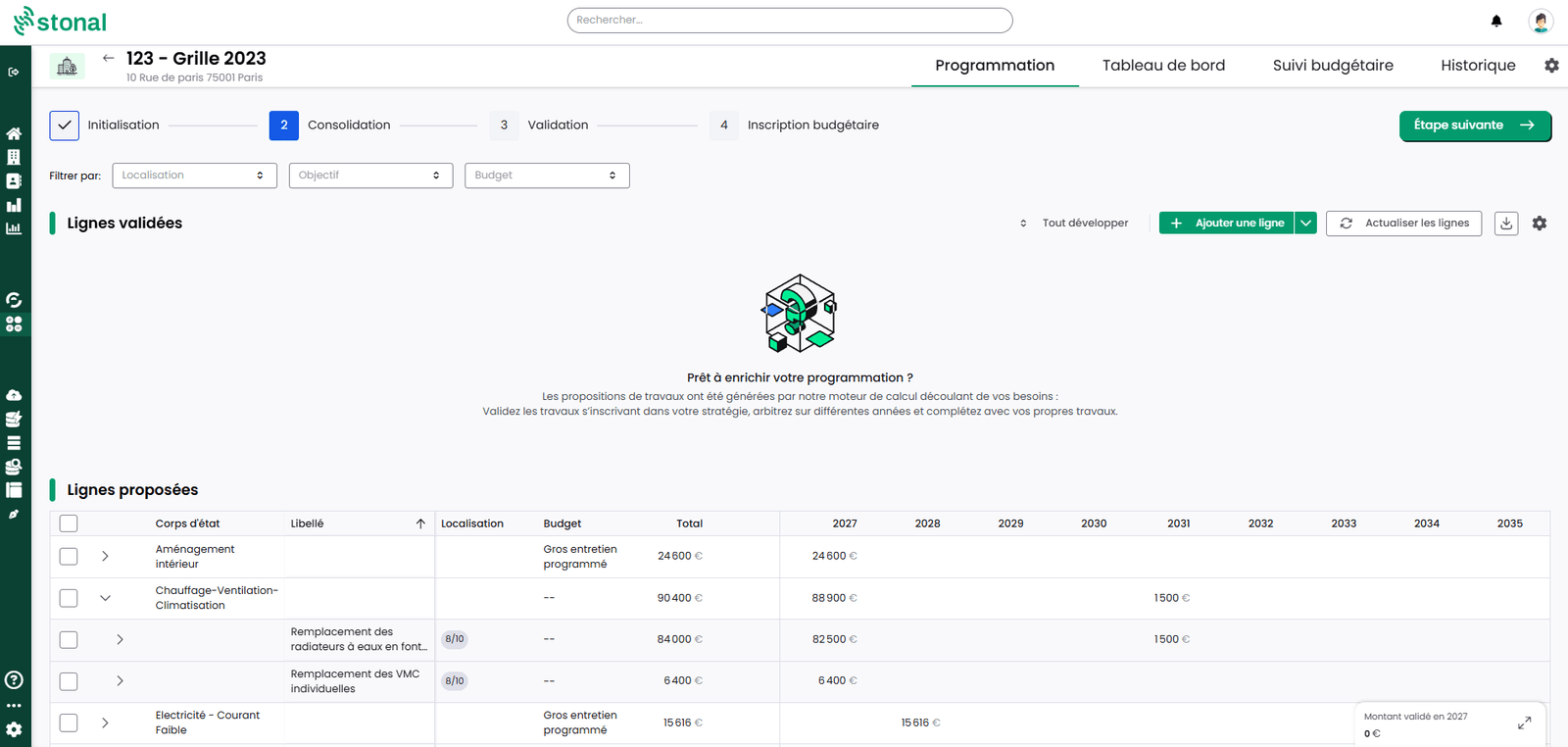
Programming distinguishes proposed lines (calculated by Stonal) from validated lines (the ones you retain). Lines are grouped by family, then by works item label.
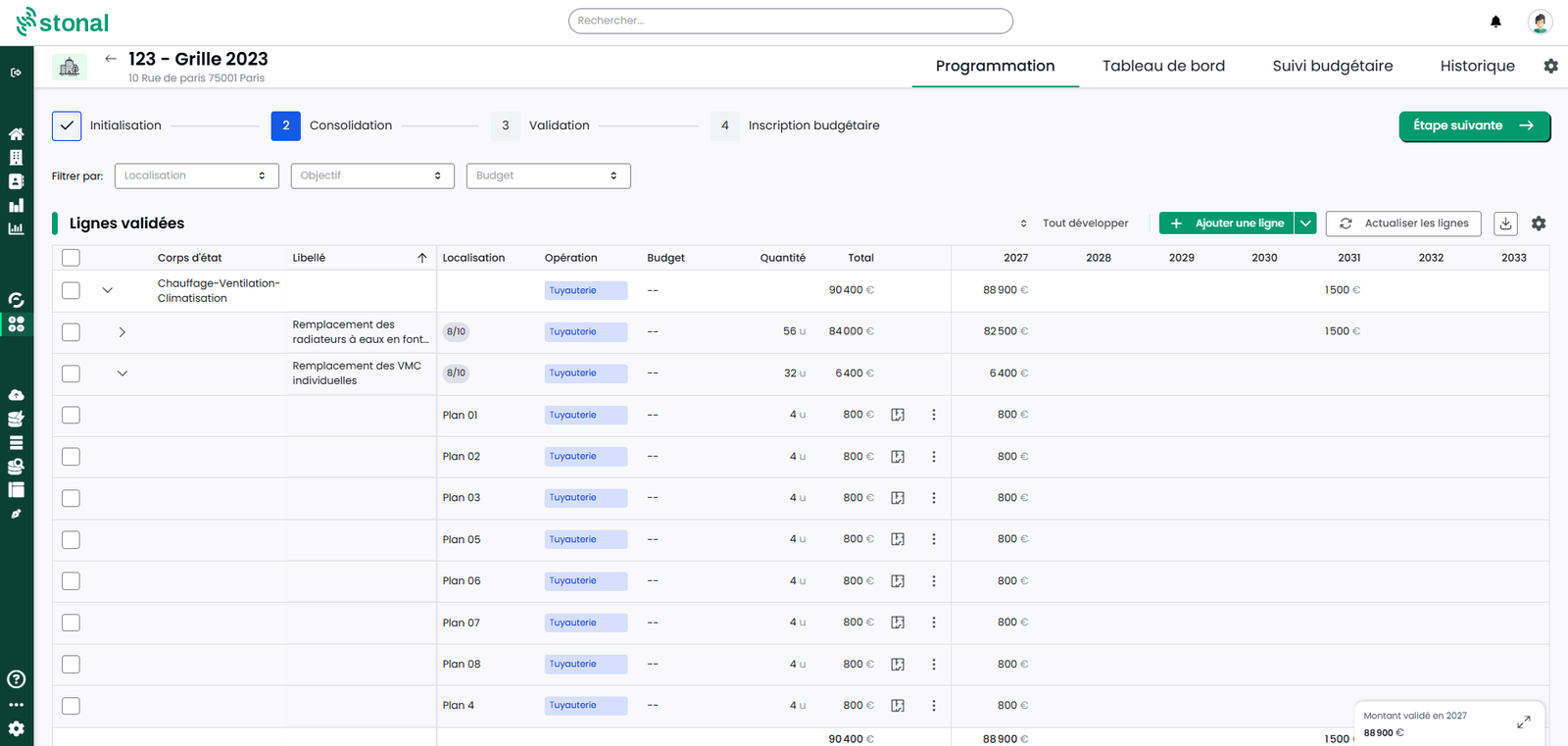
On one line, or on a selection of lines:
| Action | Effect |
|---|---|
| Validate / Invalidate | Validate the proposed lines that match what you see on the ground, invalidate the ones that no longer apply |
| Shift | Put the planned works back, or bring them forward |
| Smooth | Spread the cost of the works over several years, from a starting year — for works that will not be finished within a single year |
| Modify | Adjust the amount of a works line, or the quantities behind it: number of items of equipment, area concerned… |
| Revert to calculated amounts | Cancel the manual changes made to the amount |
See Why an expected line does not appear for the most common reasons — most of the time it is not a bug.
3. Complete with your own lines
If the lines generated automatically do not suit you, or if they are incomplete, you can create your own works lines.
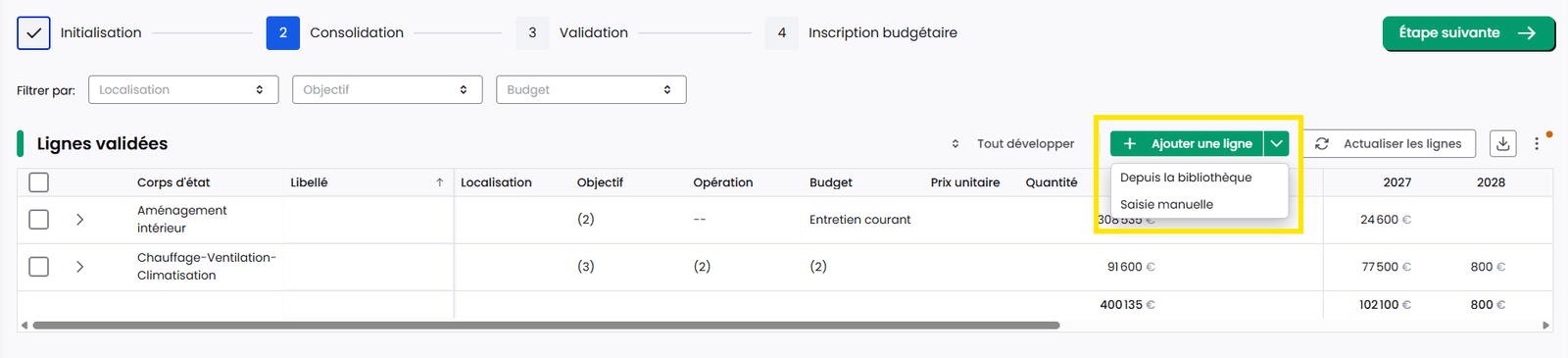
Click "Add a line":
- from the library — Stonal picks up the price and quantities of the components concerned (the "Location" field); when the property has a digital model, this is also how you pull the total quantities straight from it, rather than entering them by hand;
- by manual entry — you fill in everything.
Either way the line lands directly in the validated lines.
4. Resolve obsolete lines and conflicts
When you refresh your lines (after updating your plans, or changing a work item or a price), Stonal recalculates every line from the latest wear data. Two situations can then come up:
- Obsolete lines — lines that are no longer generated automatically, given the wear of the equipment concerned. Keep them or delete them.
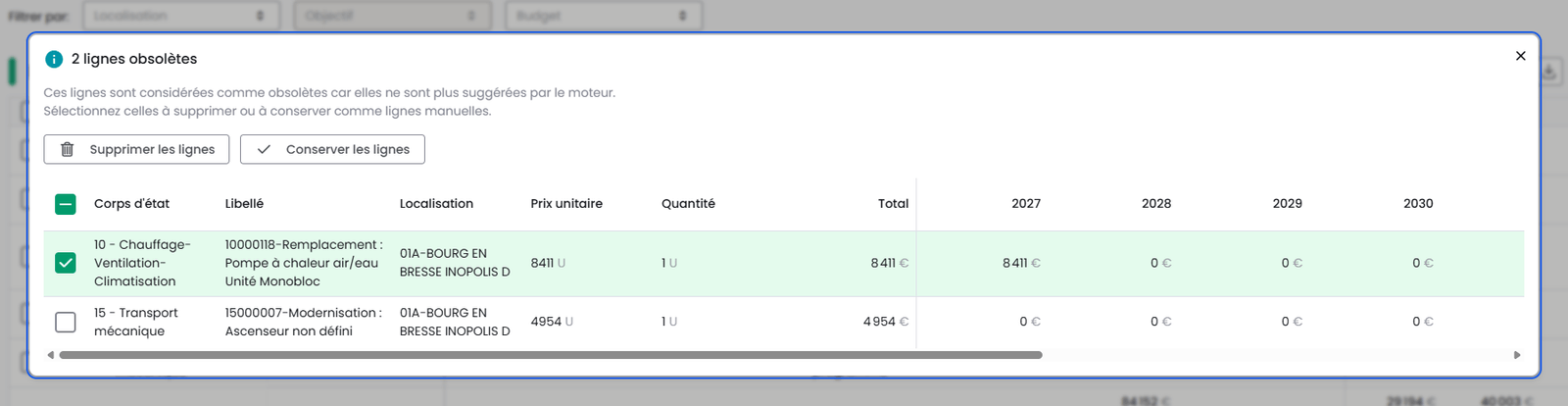
- Lines in conflict — the recalculated amount differs from yours, or the quantity has changed in the plan. Choose the old or the new value.
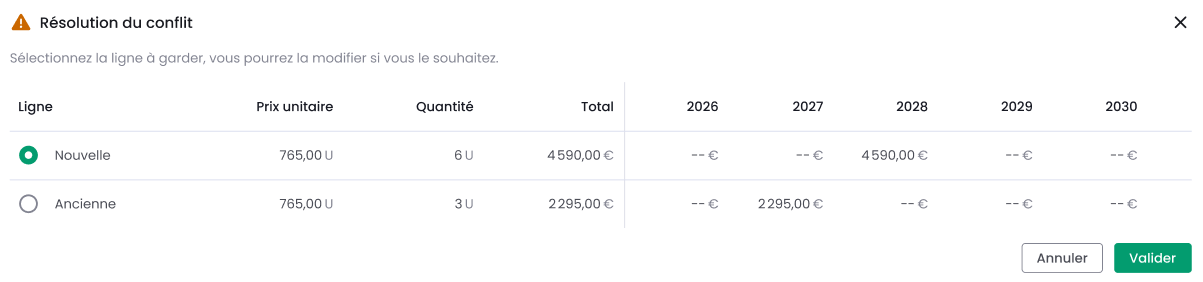
Your validated lines keep your adjustments (changed amount, shift, smoothing) when you refresh — only lines still proposed start over entirely from the latest plans.
Every conflict must be resolved before you can validate your works plan. Bulk resolution is available.
5. Move the plan through its stages
A works plan goes through five stages:
Initialisation → Consolidation → Validation → Budget entry → Validated
From budget entry onwards, the plan can no longer be modified. Once validated, its first year moves into budget tracking and the plan becomes the starting point for the next one.
6. Consolidate at portfolio level
Aggregated PPTs give budgets by year across the whole portfolio: groupings, breakdown by property, switching between validated and proposed lines, hiding columns.
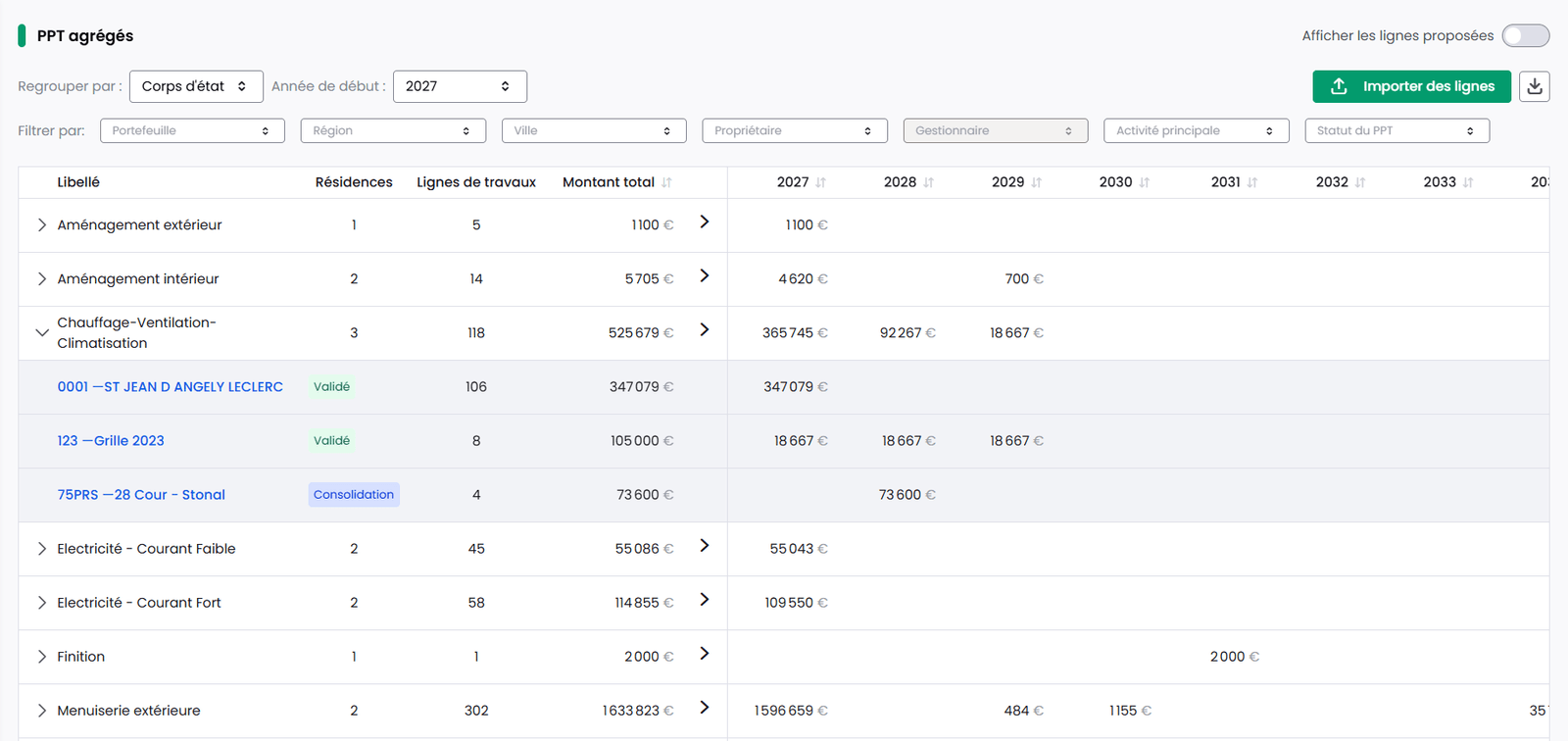
This is the view where budget trade-offs get settled. Property by property there is nothing to compare against; here you see at a glance what each year weighs across the whole portfolio, and you decide knowing the full picture.
Click a grouping's arrow to see the detail of every line it contains, across all statuses and properties.
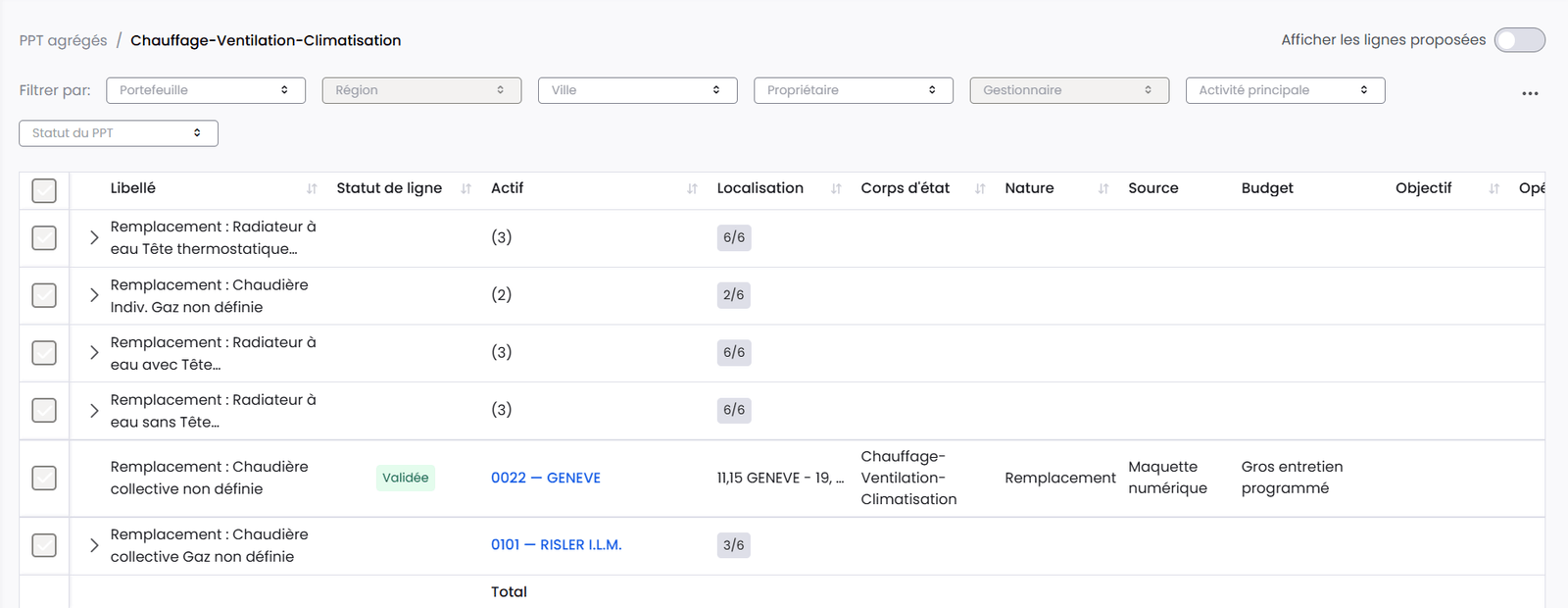
It is also the only place where you can adjust several properties at once, rather than going back through each plan one by one.
To validate in bulk: choose a grouping (the whole portfolio, or a targeted budget), expand it, tick the lines then click "Validate lines". Repeat for each grouping.
7. Validate realised works
It is only available to organisations running Graphlake. Organisations using Abyla do not see it yet.
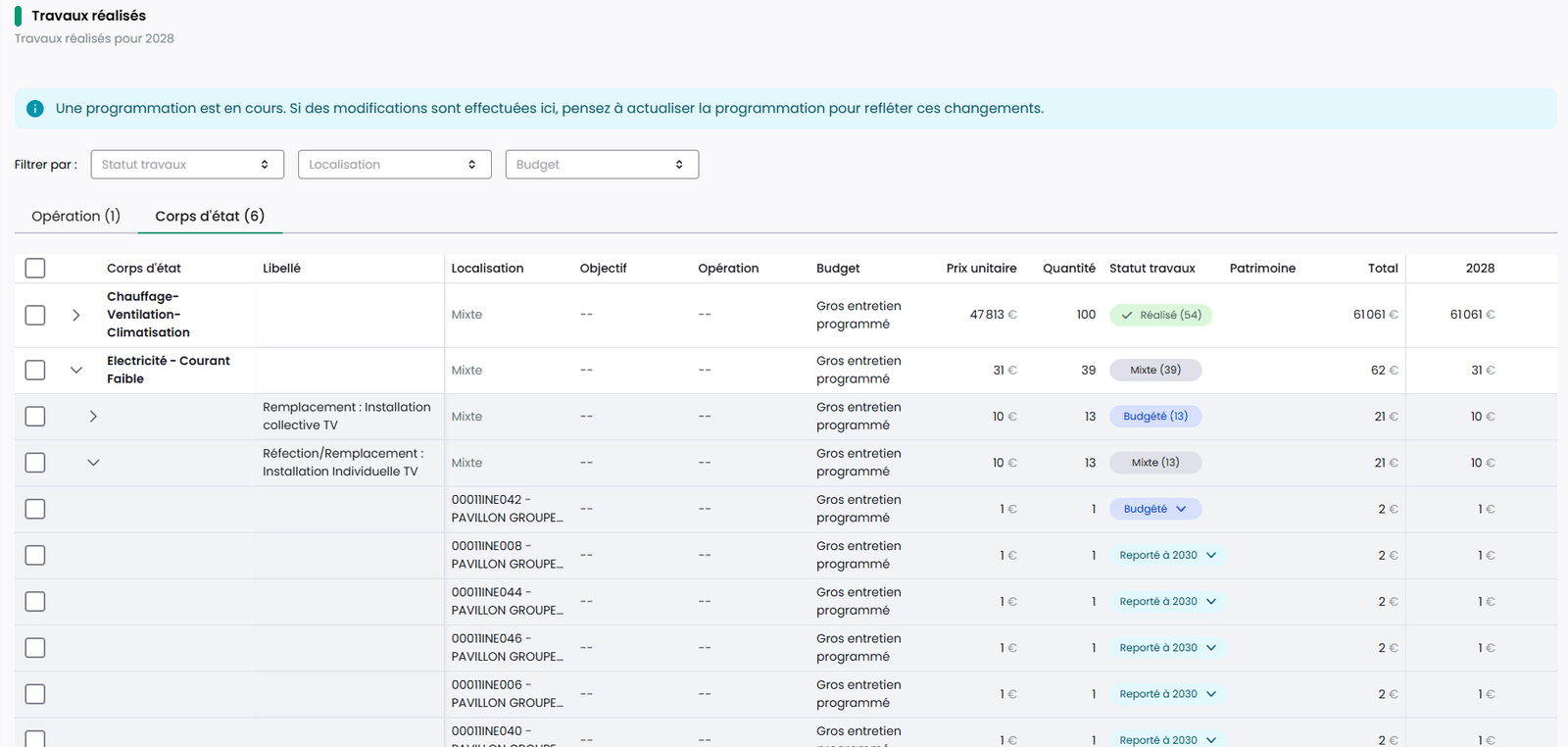
Once a works plan has been validated at least once, a dedicated Realised Works tab becomes available next to Programming and History. It lets you record, line by line, what has actually happened over the year, and updates your portfolio accordingly — works completion date and reference condition of the equipment concerned — without having to go back into the plans one by one.
This is typically done at year-end closing, alongside or after building next year's plan: recording what was realised is never required to move forward, you can start the next works plan at any time.
The lines shown are the ones from your last validated works plan that still carry amounts for the year being closed, grouped by trade or by operation.
Each line carries a status, which you can change one at a time or in bulk:
| Status | Meaning |
|---|---|
| Budgeted | Default status of every line |
| Done | The works have actually been carried out — updates the portfolio |
| Postponed | Moves the line to a target year, the same way as shifting works in Programming |
| Cancelled | Removes the line from the works to track, without touching the portfolio — it becomes a proposed line again in Programming |
Marking a line Done opens the "Confirm portfolio update" dialog: it asks for the works completion date and the reference condition, and shows a summary of every component about to change before you confirm.
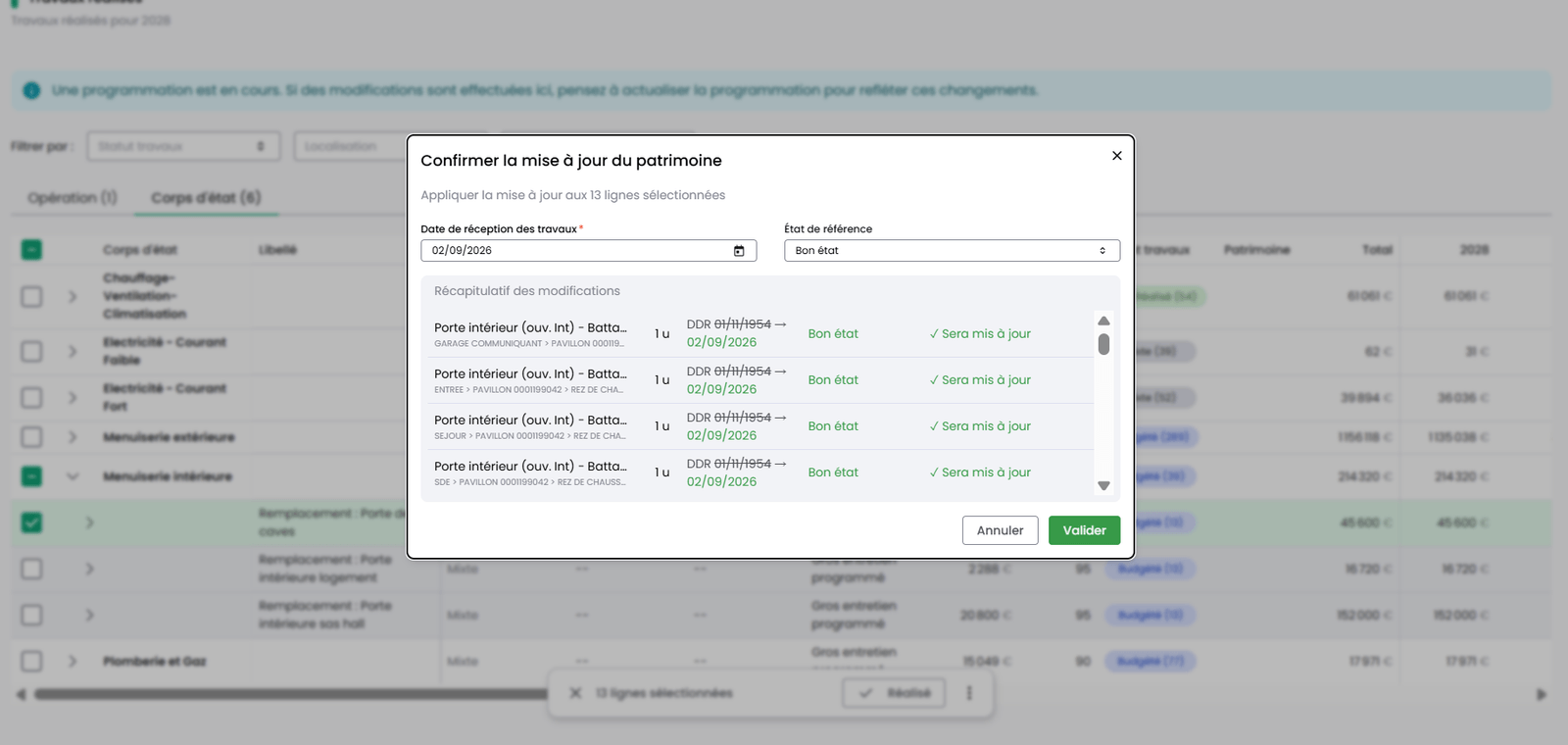
You can change your mind: the "Reset" button puts a Done or Postponed line back to Budgeted at any time, as long as no later works plan has been validated yet — the portfolio is then restored to its previous state.
When you start a new works plan, a banner shows you how many lines from the past year are still Budgeted, with a direct link back to Realised Works. Starting is never blocked: lines you have not gone through are simply carried over automatically to the new plan.
How the engine calculates your works
This section explains why the module proposes a given works line for a given year, rather than the day-to-day how-to. Useful when a proposal surprises you, or to explain how the module works to your teams.
The general principle
For every piece of equipment in your portfolio, Stonal has to answer one question: in which year should its replacement be budgeted?
Three pieces of information feed the calculation:
- the equipment's last renewal date;
- the lifespan of the matching works item (its cyclicity, defined in the expense-item library);
- its observed condition, which may bring the deadline forward or leave it unchanged.
equipment age                  = current year − year of the last renewal date
remaining lifespan             = item lifespan − age
adjusted remaining lifespan    = remaining lifespan corrected by condition (scale below)
estimated replacement year     = current year + adjusted remaining lifespan
This estimate is then reframed against your plan's period:
| Estimated deadline | What happens |
|---|---|
| Within the plan period | The line is budgeted for that year. |
| Already past | The line is brought back to the first year of the plan — which is why the first year of a plan often carries the most lines: it absorbs the backlog already accumulated on the portfolio. |
| After the end of the plan | No line is created for now; it will appear on a later plan. |
These are the only two pieces of information strictly required for the calculation. Without either one, Stonal cannot estimate a deadline and proposes no line for that equipment.
The condition-correction scale
The equipment's observed condition (surveyed on-site, or via EDIT) adjusts the remaining lifespan:
| Observed condition | Effect on remaining lifespan |
|---|---|
| Undefined | No adjustment |
| Good | No adjustment |
| Fairly good | No adjustment |
| Fairly poor | Remaining lifespan is reduced |
| Poor | Remaining lifespan is reduced further |
Its remaining lifespan is floored at zero, not negative: its deadline becomes the current year, then the first year of the plan once reframed. The more up to date your states and renewal dates are, the more reliable the engine's proposals — it is the best investment you can make in the quality of your plan.
Two data sources depending on your organisation
The calculation differs depending on whether your organisation uses Graphlake or Abyla to manage its plans — see From Abyla to Graphlake if you are not sure which applies to you.
| Graphlake organisations | Abyla organisations | |
|---|---|---|
| What feeds the calculation | Observed condition + last renewal date + item cyclicity — full calculation, done by Stonal | The equipment's observed condition, sent to Stonal — the rest of the calculation (dates, cyclicity) is driven by Abyla |
| Line quantities (surface, length…) | Calculated directly from your plans' geometry | Managed on the Abyla side |
| Expense items, prices and criteria settings | Available in Settings and libraries | Managed in your Abyla repository |
If your organisation runs Graphlake, all your properties benefit from the full calculation — including those for which you have not yet supplied a digital model.
The parent/child rule (half-periodicity)
Some expense items are linked: a "parent" item covers the full replacement of a piece of equipment (a window, for example), a "child" item covers the upkeep of one of its components (resealing a joint).
Budgeting a component's upkeep just before the equipment's full replacement makes no economic sense. The rule: a child item is only kept if it falls within the first half of the time remaining before the parent item's deadline (the exact midpoint itself is kept). Beyond that, the child line is dropped — this is not a bug, the upkeep will be covered by the upcoming full replacement anyway.
Replacing equipment with a different type
Some works items replace a piece of equipment with a different type entirely — a bath replaced by a shower, for example. Because the original equipment disappears, this replacement does not recur: it is budgeted once. The new equipment still needs its own upkeep, though, so the engine also generates a second, separate line for it: an upkeep line that starts at the replacement year plus the upkeep item's own cyclicity, then repeats until the end of the plan.
If you see two related lines where you expected one, this is usually why: one line for the one-off replacement, another for the recurring upkeep of what replaces it.
A worked example
A boiler surveyed in Poor condition, on a plan covering 2026-2040. We are in 2026.
| Data | Value | Detail |
|---|---|---|
| Last renewal date | 2010 | — |
| Item lifespan | 25 years | Cyclicity defined in the expense-item library |
| Age in 2026 | 16 years | 2026 − 2010 |
| Remaining lifespan before correction | 9 years | 25 − 16 |
| Condition correction (Poor) | Remaining lifespan reduced | See scale above |
| Budgeted year | Before the theoretical deadline | Within the plan period |
Without the condition correction, the same boiler would have been budgeted later: the condition observed on-site brings the replacement date forward.
Why an expected line does not appear
From most to least frequent:
- No equipment matches the item — the item's criteria (component type, properties, location) find nothing on this property.
- No last renewal date on the equipment.
- No lifespan available, neither on the item nor on the equipment.
- Deadline after the end of your plan — the equipment is too recent or in too good a condition to be budgeted within this horizon; it will appear on a later plan.
- Quantity not found (surface, length…) — the line cannot be costed.
- Postponed beyond the plan's horizon — you shifted the line past the end of the plan yourself.
- Dropped by the parent/child rule — see above, expected behaviour.
Configuring expense items, prices and criteria
This settings module is only available to organisations running Graphlake. If your organisation is still on Abyla, your expense-item and price repository is managed on the Abyla side — see From Abyla to Graphlake.
These settings define what the engine proposes in your works plans: which items exist, at what price, and which criteria you use to arbitrate them.
Who can access it
Access is reserved to people holding the "PPT and Libraries settings" permission (User management › Groups › rights on Works Plans):
- read-only — the Settings menu does not appear;
- modification — the menu is accessible and editable;
- administration — full access, including deletion.
Expense Items library
The repository that defines each type of works: which components it applies to, its cyclicity, and the default criteria of its lines.
- Stonal items — the reference library, covering every trade and reviewed yearly with a construction economist. You can deactivate them, but not edit them directly.
- Edited Stonal items — a modified copy of a Stonal item; you can revert to the original at any time.
- Custom items — your own items, fully editable and deletable.
Each item is described across four tabs:
- General information
- Components — the meta-library object type it applies to, quantity and unit, and application filters
- Cyclicity — the item's recurrence, plus the reference date and condition to use
- Criteria — the default values applied to lines generated by this item
creates duplicate lines in your plans. Check the application filters before creating a new item.
Price libraries
- Stonal reference prices can be viewed but not edited.
- You can create your own regionalised price libraries: item, unit price, unit, and a default coefficient per region.
- Attaching a price library to your sites is currently a manual step.
Criteria library
Three fixed criteria — Objective, Budget, Priority — whose values you customise, plus up to three criteria of your choice (six maximum). These are the criteria you then use to arbitrate your lines in the works programme.
Good to know
- Displaying amounts excluding or including tax is set through the cog on the list of properties. VAT defaults to 10% and can be changed line by line.
- Deleting a works plan is permanent.
- Deleting a custom expense item is permanent.
- Replacing equipment with a different type also creates a separate, recurring upkeep line for the new equipment — see Replacing equipment with a different type if two related lines show up where you expected one.
- Refresh your plans after changing an expense item or a price — until you do, they stay calculated on the old values. The properties list offers a bulk refresh; see Settings and libraries.
- A custom expense item that covers a component already covered by another item creates duplicate lines in your plans — see the Expense Items library before creating one.
See also
- General information for a property
- Data quality — improving the conditions and renewal dates that feed the calculation