What's new in September 2026
Here is what changed on the platform in September: first the main changes, with what they let you do, then the other improvements by module, and finally the fixes.
This month at a glance
Manage the service provisions of your equipment
This change applies to organisations equipped with Graphlake.
Why. On-site teams (caretakers, on-call staff) must be able to tell within seconds which piece of equipment supplies a unit or a stairwell, for example to report a breakdown to the right contractor.
What changes. A service provision connects a piece of equipment (boiler room, meter, ventilation unit, riser…) or a technical room to what it supplies: building, stairwell, unit or other equipment.
- Service provisions are created, edited and deleted from an equipment's information record, from the plan, or when the equipment is created.
- On the unit record, a "Service provisions" section lists the equipment serving the unit, directly or through its parents. On hover, the location of the service provision is shown; on click, the plan opens on the equipment or room.
- The code and name of a service provision are generated from the code of the equipment and that of the component served.
- When a piece of equipment is deleted, a message warns that its service provisions will be deleted too.
- Service provisions can also be queried in the query tool.
Example. A tenant reports a hot water failure: from the unit record, the property manager sees in the "Service provisions" section the water heater supplying the unit and knows which equipment to report.
Good to know. Service provision management is turned on for each organisation, in the Organisation management application, with the "Display service provisions" option. This option is off by default. Creating, editing or deleting a service provision depends on the permissions you have been given: if you need them, contact your referent. The Service provisions section of the General information tab of a property or building is not available yet.
See also: The unit record
Explore the 3D model: themes, measurements, sections and labels
This change applies to organisations equipped with Graphlake.
Why. These features existed in Model's 3D view but not yet on the platform. The section tool lets you see inside a building, and measuring lets you take a facade height without going on site.
What changes.
- Themes: a theme turned on in 2D also colours the 3D model, and the other way round. For a theme on rooms, rooms are shown on the floor being viewed; for a theme on equipment, they are hidden.
- Measure: the tool also works in 3D, two clicks on the model show the distance. Measurements taken in 2D are kept when you switch to 3D and back to 2D.
- Section: this new tool, available in 3D, slices the model to show its inside.
- Labels: room labels are also shown in 3D.
- PDF export: the 3D view can be downloaded as a PDF (A4 landscape), with the measurements and the theme shown.
Example. For a facade renovation quote, a property manager measures the height of a facade directly on the model, without going on site.
Good to know. The section tool still takes a little practice to master.
See also: The plans of a property
Plans tab: a single search that highlights the results
This change applies to organisations equipped with Graphlake.
Why. Search results were shown in the side panel without anything appearing on the plan, and the list of types offered covered the whole reference catalogue, including what does not exist in the property.
What changes. A single search field replaces the separate filter button.
- When you click in the empty field, a menu offers the categories present in the portfolio shown (equipment, spaces, zones, units). You can tick a whole category or open it to choose specific types, each with its number of items.
- As you type, suggestions are split into two parts: the matching types, which you can tick, and the items of the tree.
- Each ticked type becomes a filter shown under the field, with its total. Remove it with one click, or all at once with "Reset filters". Filters stay active if you clear the text.
- Criteria add up: several types, or a type and a text, show every item that matches at least one of them. A counter shows the number of results.
- Results are highlighted both on the plan and in the tree. Branches that contain results expand and show how many they hold. A list view also lets you browse them.
Example. A property manager ticks the "Bathroom" and "Shower" types: the 24 matching items are highlighted on the plan, and the tree shows at a glance which floors and units they are in.
See also: The plans of a property
My properties: find upcoming and archived properties on the Stonal platform
Why. A property being delivered or leaving the portfolio could not be found on the platform, which got in the way of uploading documents before a delivery, for example.
What changes. Every building and property has a status calculated from its effective and expiry dates: Upcoming, In operation or Archived. A Status filter is added to "My properties"; the default view remains "In operation". You can thus access upcoming or archived properties.
Good to know. The status cannot be changed by hand: if it is wrong, correct the effective or expiry date.
See also: My properties
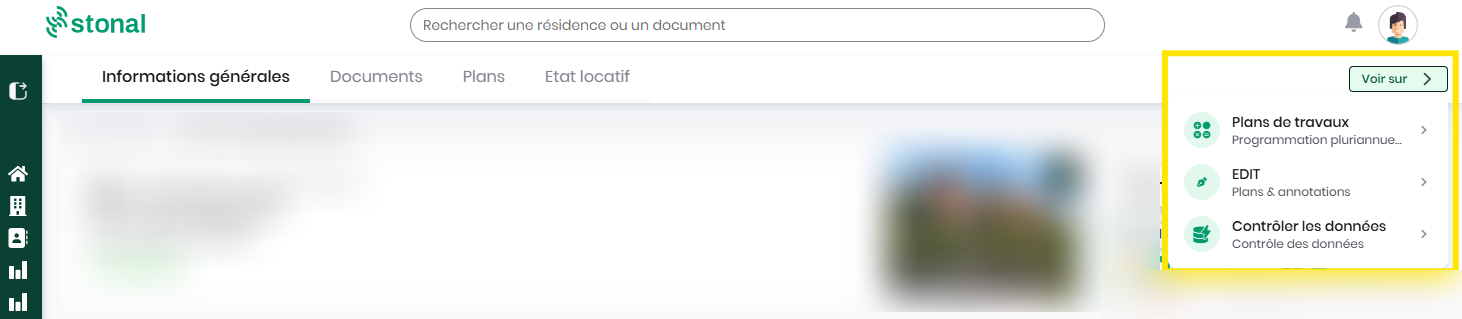
Switch from one application to another on the same property with "View in"
Why. The platform's applications work on the same portfolio. Moving from one to another in one click, without searching for the property again, makes navigation simpler.
What changes. A "View in" button appears at the top of a property's record. It opens the same property in the platform's other applications: Works Plans, EDIT, Check data.
Aggregated works plans: track the plan status of each property
Why. At the end of a campaign, an asset manager needs to know which properties have already validated their works plan, to focus decisions on the others. Lines that can no longer be decided on should not get in the way.
What changes.
- A "PPT status" filter offers five statuses that can be combined. It applies to the list, the detail and the CSV export.
- When you expand a group, each property shows the status of its plan.
- In the detail of a group, lines already validated can no longer be ticked (a tooltip explains why), and "Select all" only keeps lines that can still be decided on. These lines are greyed out and placed at the bottom of the group; sorting a column replaces this order.
- The group line shows the property name when there is only one, otherwise their number, with the shared location.
- The Source column is translated into French, on screen and in the XLSX export.
Example. An asset manager filters the plans still "in progress" to follow up with the property managers concerned. Lines of plans already validated stay visible at the bottom of the list, with no risk of selecting them by mistake.
See also: Building a multi-year works plan
Query tool: change the type of components in bulk by import
This change applies to organisations equipped with Graphlake.
Why. Fixing a wrong type, for example equipment imported as "Bathtub" instead of "Shower", was only possible online, on a query.
What changes.
- The CSV import for editing accepts a Type column: you can change the type of one or more components, in addition to their properties.
- The "Export" button always offers the choice between "Export (CSV)", "Export for modification (CSV)" and "Export for creation (CSV)".
- The import window explains the procedure more clearly.
- Changes, online or by import, only apply to the portfolio you have permissions on.
Example. About a hundred pieces of equipment were imported with the wrong type: you export the query for editing, correct the Type column, then re-import the file in one go.
See also: Querying your data
Other improvements
Plans tab (Graphlake)
- The plan remembers your settings: label type and size, layers shown and the active theme are saved for each user and restored on every plan. A shared plan link opens with the display of the person who shared it.
- Label size setting (room name, area, rental management code), with a preview on the plan.
- Plan PDF export: a title block is added to the right of the plan, filled in automatically (legend of the active theme, site, building, floor or unit exported, scale, date).
- Link-type properties are shown as clickable links in information records.
- A selection window opens when several pieces of equipment overlap at the same spot, as in EDIT.
- The tree shows the equipment type label rather than the saved name.
- Buildings are coloured when hovering over the site plan.
- The default colours of the "space type", "equipment type" and "zone type" themes are more logical.
- The plan action bar is aligned with EDIT: the active tool is shown in green, and a marker shows that a theme, a label type or a layer is applied.
My properties
- The search bar also covers the address, in addition to the code and name.
- A "Core business" filter is added.
- The core business is also shown when it is entered as free text.
Property record (Graphlake)
- In the Equipment tab, a grouping level by constituent is added between the unit and the equipment.
Unit record (Graphlake)
- Numbers are shown in French format and list values as tags.
Query tool (Graphlake)
- The list of saved queries shows their author, for queries created from now on.
- The end-of-export message for editing or creation contains a link to the meta-code library.
- The exported file is named after the query.
Portfolio and data
- The survey date is updated automatically when you change the general condition of a piece of equipment, as for secondary conditions.
Works Plans
- The cyclicity of the item appears in a line's detail panel.
- When adding a line, the total amount can be entered directly, without going through the quantity: the last field entered (unit price or total amount) prevails.
- Programmings can be deleted in bulk from the list of properties, with confirmation, depending on the permissions you have been given.
- Editing the condition of equipment is open to all organisations.
- Works plan generation, line loading and aggregated plans are faster.
- Programming filters are kept in the page address, so you can find them after a reload or share them by link.
Works Plans (Graphlake)
- An icon flags sites digitised without a model in the list of properties and in the programming header, and a "Digitisation" filter lets you isolate them. The icon and the filter only appear if the organisation has at least one site of this kind.
- A line's location leads directly to the Equipment tab of the property record.
- Libraries: the price is entered when the item is created. A "Price" step is added between cyclicity and criteria (Organisation price excl. VAT and VAT, 10% by default), with a summary of the final price in each derived price library. The "Reference price" column of the item list is filled in.
- Price libraries: the window for deleting a library lists the sites that use it.
- Completed works: the view by operation becomes a table with its progress (number of lines, percentage completed, total amount and amount per year), whose lines can be expanded.
- Completed works: after switching to Completed, the status of the portfolio update is shown, with the list of equipment that could not be updated.
- Completed works: the works handover date is prefilled with the previous day.
- Completed works: the date and reference condition of a line already switched to Completed can be changed without cancelling it.
- Equipment placed at plan or floor level (lifts, ventilation units, risers) is taken into account when generating works plans.
- For commercial property, restoration lines from leases use an icon to tell a confirmed notice from an assumption (end of lease, due date, tacit renewal), and the "Count" source is renamed "Leases".
Reports
- A "Survey reliability" tab is added to the Document tracking report: diagnostics not linked to a unit or building, energy performance certificates whose ADEME number is missing, malformed or duplicated, with a link to Stonal Smartdoc to correct them.
Model on Platform plans (Abyla)
- The plan is easier to read and closer to the look of Graphlake plans, especially for the site plan background.
Fixes
- Plan PDF export: the scale is calculated on the printed A4 page, the label size chosen on screen is kept, and printing a site plan is no longer cut off.
- In EDIT, the site plan of Graphlake organisations is shown in colour again.
- Plans tab: the "Openings" category wrongly created in the equipment grouping is gone.
- Equipment tab of the property record: a collapsed constituent line no longer shows the code of a single piece of equipment as if it were shared by the group.