Assets, the building blocks of your portfolio
This section is a little more technical than the rest of the guide, but it can be very useful to those who create building models, for example in Autodesk Revit, for which we have developed a connector to the platform in the form of an add-in, and to those who want to create the elements of their portfolio by API.
Like any platform or software that describes a building, Stonal represents its elements: levels, rooms, equipment… But each tool designs them its own way, according to what it sets out to deliver: a design tool, for example, describes them to design and build. That is what gives each its own value.
Our platform, for its part, describes the building's elements to serve what it brings: managing the portfolio, maintaining it, and the tools built around these processes. That is why its components carry characteristics designed in that direction. The rest of this guide calls them components; in Stonal's language, they are called Assets.
In this section, we will keep to the term Asset, and show what it looks like and in what format it is created. But once again, an Asset is simply a component of the portfolio. Here are a few examples of our Assets:

Each Asset is a single record in the platform's database. Together, these Assets make up your portfolio.
Several sources feed an Asset
An Asset can be created, edited or deleted by several sources:
- a manual entry in the platform, from the property sheet or the DQC (data quality control);
- a query with the Query tool;
- an on-site survey with our EDIT application;
- the Stonal API;
- a bulk import from the client's ERP;
- a Revit building model, with the Stonal Connector add-in;
- and others still.
The sources are not walled off from each other: a Revit model can complete Assets created by another source, for example imported from the ERP or entered by hand in the platform. And the other way round, an Asset created from Revit can later be enriched, edited or deleted by another source.
Whatever the source, the same Asset
Whether it is entered in the property sheet, imported by CSV or created from a Revit model, an Asset is always written the same way, in a format called JSON.
A format is simply a way of organising information, like the text of a document or the columns of a
CSV file. JSON writes it as text that both software and people can read: each piece of information
has a name in quotes, followed by its value, and braces { } group the pieces that belong
together.
And yet, you may be thinking: “I create and edit Assets, and I have never seen this JSON. I just click buttons, in Revit to create my elements, or in the platform's tools and applications. So why talk about it?” Simply because all these applications know how to write this JSON from your actions and send it to the platform, which then creates or edits the Asset. It is the same for Revit: the Stonal Connector add-in converts what you do to Revit elements into Assets, as JSON. Let's look at it together, to understand how it works.
If you have never seen JSON, this format may feel unfamiliar. We are going to take it apart simply and briefly by building together, in the next section, the Asset of a bathroom with its various characteristics, simplified.
Show the bathroom's JSON
{
  "type": "SPACE|SDB",
  "uid": "4f2c9a1e-…-3a24",
  "externalIds": {
    "REVIT": "839dbc5b-…-002d76ad",
    "ERP": "LGT101-SDB"
  },
  "properties": {
    "simple": {
      "SURVEY_DATE": "2026-03-12",
      "FLOOR_CONDITION": "Good",
      "COMMENT": "Grout to redo"
    }
  },
  "parent": { "uid": "a00bcf8b-…" },
  "groupedBy": [{ "uid": "77d1e3c0-…" }],
  "representations": {
    "outlines": [[
      {"x":0,"y":0}, {"x":260,"y":0},
      {"x":260,"y":170}, {"x":160,"y":170},
      {"x":160,"y":240}, {"x":0,"y":240}
    ]]
  }
}
What an Asset is made of
Each Asset is described by several characteristics: its type, its identifiers, its properties, its relations with other Assets and, optionally, a representation. Let's build the bathroom, one characteristic at a time.
The type
The type says what the Asset is, from general to precise. First SPACE: it is a space. Then the
subtype SDB, more precise: a bathroom. Click “Add "type"” to give it one.
The identifiers
An Asset always has a unique identifier, the uid, given by Stonal. It can also carry external
identifiers (externalIds) that link it to your other tools: here the room's UniqueId in the Revit
model, and its identifier in the client's ERP. Click “Add "uid", "externalIds"” to give it them.
The properties
The properties (properties) describe the Asset: here the survey date, the floor condition and a
comment. Click “Add "properties"” to give it them.
The relations
The relations place the Asset among the others. Its parent (parent) says where it physically is:
here level R+1, which contains the room. Its groups (groupedBy) are logical groupings: here the zone
Unit 101, which groups several rooms. Click “Add "parent", "groupedBy"” to give it them.
An alphanumeric Asset
With the four characteristics we have just added, we have created what is called an alphanumeric Asset, flagged with the α symbol in the platform. It is already fully usable, because it tells that this component exists in your portfolio: it appears in its residence's tree, with all its information. You can query it with the Query tool, check some of its data with data quality control, complete it on site with EDIT, or keep developing it with other sources. Its information is made of letters and numbers: that is why it is called an alphanumeric Asset.
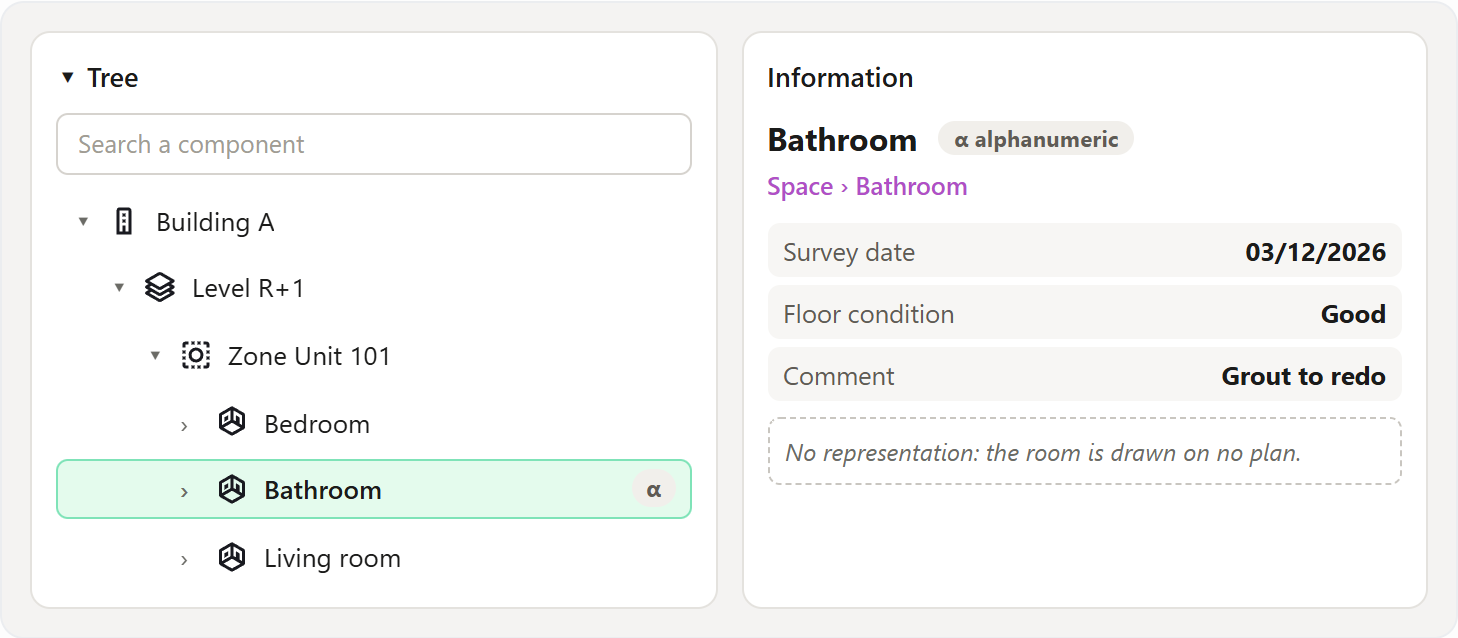
What it lacks, on the other hand, is a graphic state: its shape and size. That is what lets you, for example, draw it on a plan, or run geometric operations and calculations on it, such as computing its area from its shape. This graphic state is of course optional: some clients only have an alphanumeric portfolio, and that is enough for them. Let us now see what separates an alphanumeric Asset from a graphic one.
The final touch: the representation
A graphic Asset is exactly the same Asset, with one difference: it also carries a representation, that is, its geometry. For a room, it is its outline. Click “Add "representations"” to give it one and reveal the full JSON.
The representation is the subject of the next page: Representations.
Of course, this page simplifies several concepts: it aims to get the overall ideas across, what an Asset is and what it is made of. You do not need to write this JSON yourself, nor manage it: the goal is to understand, even roughly, how it works behind the scenes.
To go further, and for those who want, for example, to create Assets directly as JSON, to use the API, the API documentation is much more precise on this subject. There you will find, for example, the tree of relations between Assets.