Checking your data
What it is for
This module — sometimes called DQC, for Data Quality Control — lets you verify how many components have been created on your organisation, from properties and buildings down to equipment, and consult any loading errors encountered during automatic loads.
It is also where you find, for every value, where it came from and who changed it — it is the meeting point for the history of your data.
Step by step
Check and correct a value
Navigation cascades from the general to the specific.
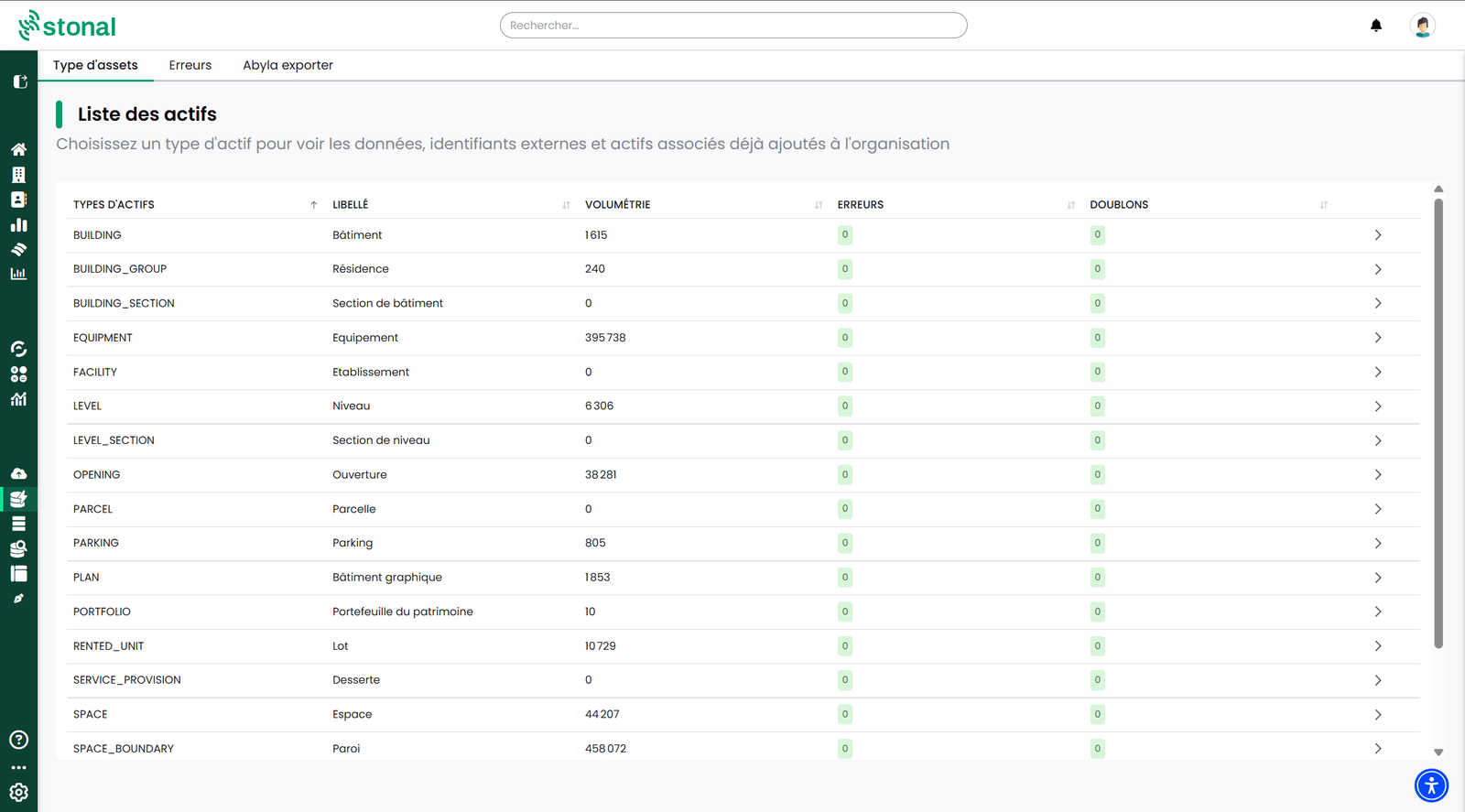
1. The list of item types in your portfolio — properties, buildings, units, equipment, walls, openings… For each, its volume, its number of errors and its number of duplicates. Click a type to check its data.
2. The list of items of that type, with their properties. The "Download" button exports the list. Click a row to open its record.
3. The item record, Data tab: you view and change values there.
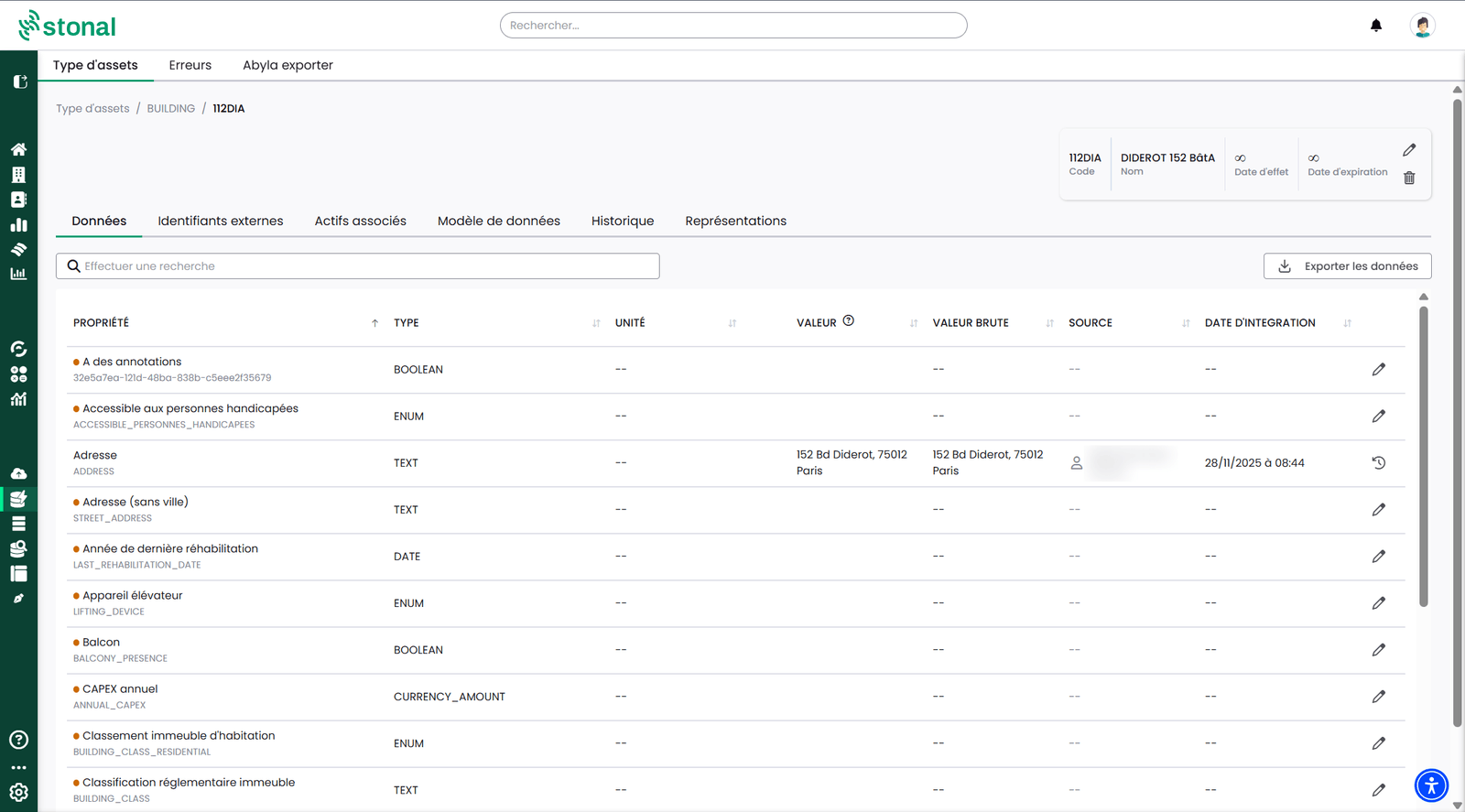
Each row gives you the property and its code in your reference data, its type, its unit, its value, its raw value as it arrived, its source — the author of the last change — and its integration date. The pencil at the end of the row lets you edit; the clock icon opens the value's history.
An orange dot flags a value missing as of today.
The "Export data" button retrieves every property of the item, and "Change the code" lets you change the item's own code.
To correct a value: choose the component, click the property to change, enter the value, then save.
The pencil at the top right of the record opens "Edit asset", which holds the information of the item itself: its code, its name, its effective and expiry dates, its type.
The tabs of an item record
The record has six tabs. Data is the one you will open most often; the other five are there to tell you where an item came from and how it hangs off the rest of your portfolio.
Data model
Where this item sits in your portfolio: what it belongs to, and what it is made up of. Two ways of being attached appear:
- is part of — a floor is part of a building, a room is part of a floor;
- groups — a property groups its buildings.
Clicking any element opens its record. It is the quickest way to check an item is attached in the right place, or to track down one that is not.
External identifiers
The codes this item is known by in your other software. Each entry gives the code, where it comes from and what kind of tool it is. This is where its code in your management software lives, for instance.
You can add, change and delete them.
That code is how your other software recognises this item. Deleting it cuts the link, and information coming from that source may stop arriving.
Associated assets
The other items attached to this one. Pick a type first — equipment, dwellings… — and the list shows those of that type associated with it, with their code and name. The table can be downloaded.
Unlike the diagram, which shows the whole picture, this tab answers a precise question — "which equipment is attached to this dwelling?" — and gives you the list.
History
What has happened to this item, most recent first. Not only the values that changed: also when it was attached to another item or detached from one, and when one of its codes was added or removed.
Each row gives the date, the nature of the change and its origin. This is what you open when a value changed and nobody knows when or why.
Representations
What makes it possible to draw this item on a plan: its outline and its faces.
An "Invalid" badge flags a shape the platform cannot use. That is usually the explanation when an item does not appear on the plan, or appears wrongly. You can isolate a face to look at it more closely.
It is the normal case for an item described by its data alone, with no plan.
Consult loading errors
The "Errors" tab lists the errors encountered during loading. You can download it, sort it and search it for a specific message.
Good to know
Changing a value from this module depends on the permissions you have been granted, so you may not have access to it. If you need it, ask your internal contact.
From the Plans tab, the "View history" button in the information panel brings you here: it is the same history.
See also
- Querying data — correcting in bulk
- The plans of a property