Handling and tracking EDIT annotations
It is meant for the people who check, confirm and track annotations, most often from a computer. Do you go out in the field? See Running a field survey with EDIT.
What it is for
Annotations placed in the field do not change the portfolio straight away. They are first reviewed, then handled: some automatically, by you, others by the Stonal teams. This page describes that process, and the report that lets you track your teams' activity.
Find and handle an annotation
Open the Annotations tab, filter on the status you need (for instance To be handled automatically or To be handled by Stonal), then open the annotation. The View on plan button takes you back to it.
To change the status, open the annotation and change it at the top of the page. You can filter the plan to show only handled annotations.
The "See the annotations" button on the main page opens every annotation across your portfolio, with bulk actions.
The same filters are available on the plan and in the annotation list, so there is only one set to learn: by status, by equipment family, and by branch, agency or property. The name of the property is shown on each annotation, which makes it quicker to find the one you are after.
On the plan, the Legend button reminds you what each pin means, see Reading the pins.
To delete, open the annotation and click Delete.
What happens after a survey
Handling is semi-automatic: it depends on what the annotation asks for.
- Adding, replacing or removing a piece of equipment can be handled automatically, by you, from the annotation list.
- A structural change (reworking a wall, correcting a plan's geometry, changing circulation) needs the Stonal teams to step in.
Launch the automatic processing
1. Check and reclassify. From the annotation list, look at the ones with the "New" status. Check that the type is right. You can reclassify it, turning an Info annotation into a Creation for instance, if the type chosen in the field was not the right one. Then check that the required information is complete: a message tells you.
2. Confirm. Select one or more annotations ready to be processed, then click "Start auto processing".
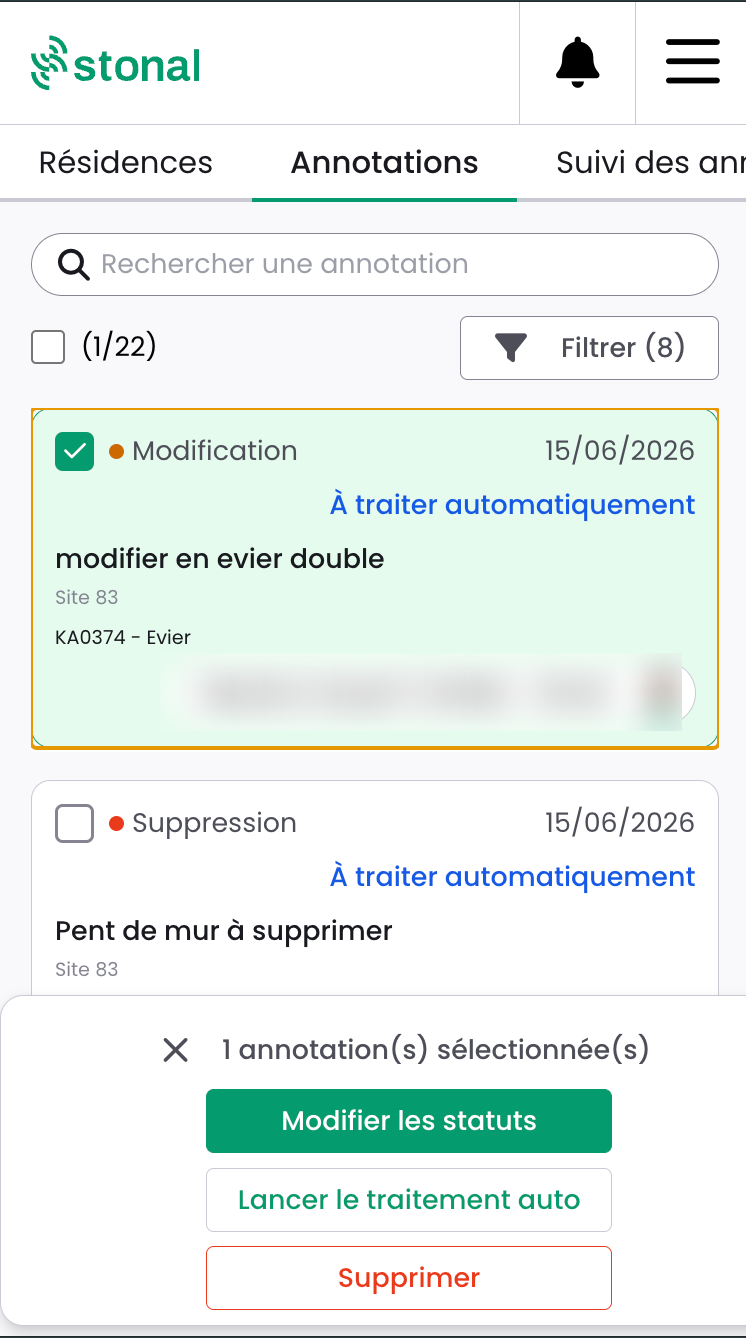
It only becomes active when every condition on the annotation is met. If a required piece of information is missing, a message tells you exactly what to complete.
3. Processing. On confirmation, the change is applied to your portfolio reference data:
| Annotation type | What happens |
|---|---|
| Creation | The equipment is created at the coordinates given |
| Deletion | The equipment is deactivated and given an end-of-life date |
| Modification | The selected equipment is replaced by the new one |
The annotation then takes the "Auto-processed" status ✅.
The equipment is created in your data. Depending on your platform, it may be drawn on the plan at a later stage.
If processing fails, the annotation takes the "Error" status, with the reason shown. It is then picked up by the Stonal teams.
The cases that go through the Stonal teams
- Info annotations: no automatic processing;
- geometry corrections: reworking a wall, plan anomaly, changed circulation;
- façade annotations, with no room attached.
For these, set the annotation to "To be handled by Stonal". Depending on your subscription, it is picked up within the contractual timeframe agreed.
It is being rolled out gradually: get in touch with your Stonal contact to have it enabled.
Tracking your teams' activity
The "Annotation tracking" tab lets you follow your teams' activity and the status of your annotations. It is refreshed every night. If you do not have access to it and you need it, ask your internal contactThe person in your organisation who knows the configuration chosen for Stonal: permissions, access to a module, contents of a report. to open the permission.
You can filter by organisation, branch, site or building code and label, floor, Stonal identifier, author, object type, annotation type, status and label.
It reads in four blocks:
- Overview: the counters (total annotations, to be decided, to handle, handled).
- Activity by property: the last 10 properties annotated, and the number of annotations per property.
- Breakdown and resolution: by type and by status, with a progress gauge and the request dates.
- Annotation detail: the full list, with location, author, content and status.
The report also tracks the attribute updates made through EDIT: number of attributes changed, trend by month, breakdown by attribute type, and the detail of before and after values.
See also
- Running a field survey with EDIT: install the application and place annotations
- EDIT recommendations: good practice for surveys and confirmation
- Works Plans: what your surveys feed